The sales report has to be ready every morning before the teams arrive. Transfer orders need to be processed every five minutes, weekends included. Nobody runs these programs by hand: SAP background jobs take care of them, behind the scenes, without interruption.
Whether you create them yourself or not, you depend on them every single day. This guide covers the essentials from a key user perspective: the lifecycle of an SAP background job, clean job creation in SM36, and job monitoring in SM37.
- An SAP background job runs a sequence of steps without user interaction: ABAP programs (standard or custom Z), external commands, or external programs.
- Two transactions cover everything:
SM36to create jobs,SM37to monitor them. - The lifecycle counts 6 statuses: Scheduled, Released, Ready, Active, Finished, Canceled.
- The start condition triggers the job: immediately, at a date and time, after another job, after an event, or at an operation mode switch, with optional recurrence.
- First reflex on a failed job: open the job log in SM37; it almost always holds the exact error message.
What an SAP background job is really for
A job is a background execution: the system runs through a sequence of preconfigured steps, without any user interaction. Each step executes an ABAP program (standard or custom Z), an external command, or a program external to the system. In the vast majority of real-life cases, the steps are ABAP programs.
The real power of a job lies in its scheduling: a frequency (daily, weekly, monthly) and a precise start time. That is what turns a heavy program into a nightly automatism: executed at three in the morning, it runs faster and disturbs nobody.
And that is why the topic matters to key users as much as to administrators: your morning extractions, your interfaces, your reminders all arrive through background jobs. Knowing how to read them in SM37 means answering “why didn’t the report come out?” without opening a ticket.
The job lifecycle: 6 statuses to know
Every job moves through a cycle of statuses, and each status tells you something specific.
| Status | What it means | What it implies for you |
|---|---|---|
| Scheduled | The job is defined, but has no validated start condition | It will never start as is: it is waiting to be scheduled, then released |
| Released | The start condition is set, the job is waiting for its time | Everything is normal: it will start at the planned moment |
| Ready | The time has come, the job is waiting for an available work process | If it stays there for long, the system is under load |
| Active | The job is running right now | Be patient; the Duration is counting in real time |
| Finished | Execution completed without errors | The result (spool, data) is available |
| Canceled | The job stopped with an error | Head straight to the job log, it explains why |
The most useful nuance in daily work: a Scheduled job is not waiting to run. As long as it is not Released, it is merely defined, and it will never start. That is the answer to a great classic among Monday morning tickets.
Creating a job in SM36, the clean way
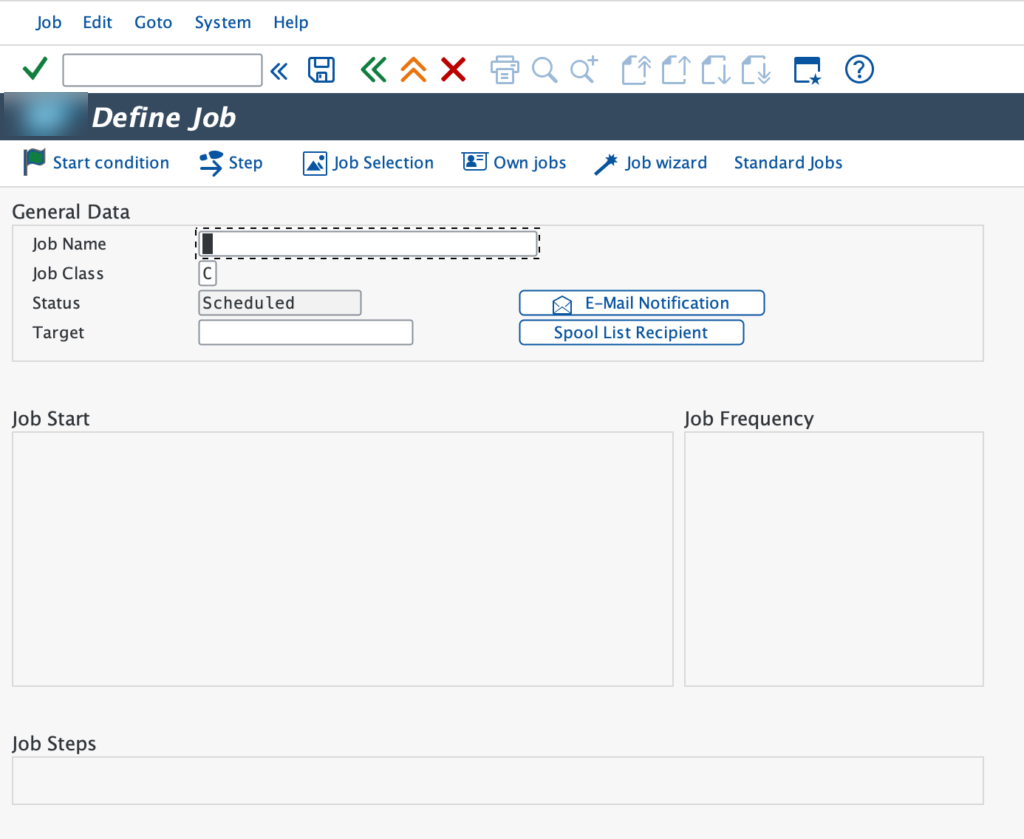
Job creation goes through SM36, Define Job. The main screen gathers the general data and the three building blocks of the job: the start condition, the steps, and the recurrence.
-
1Name the job
Follow your company naming convention: the name is how you will find the job again in SM37.
-
2Choose the Job Class
A, B or C: this is the priority for resource access. C is the usual value; A is reserved for critical processing.
-
3Define the steps
The Step button adds each step: the ABAP program with its variant, in the intended execution order.
-
4Set the start condition
Immediately, at a date and time, after another job, after an event; tick the recurrence box for a recurring job.
-
5Configure spool and notification
Spool List Recipient sends the print output to a chosen recipient; E-Mail Notification alerts you when the job ends.
-
6Save
The job switches to Scheduled, then Released if the condition is complete: check its status in SM37.
Here is what the steps look like once defined: in this case, two ABAP programs executed one after the other within the same job.
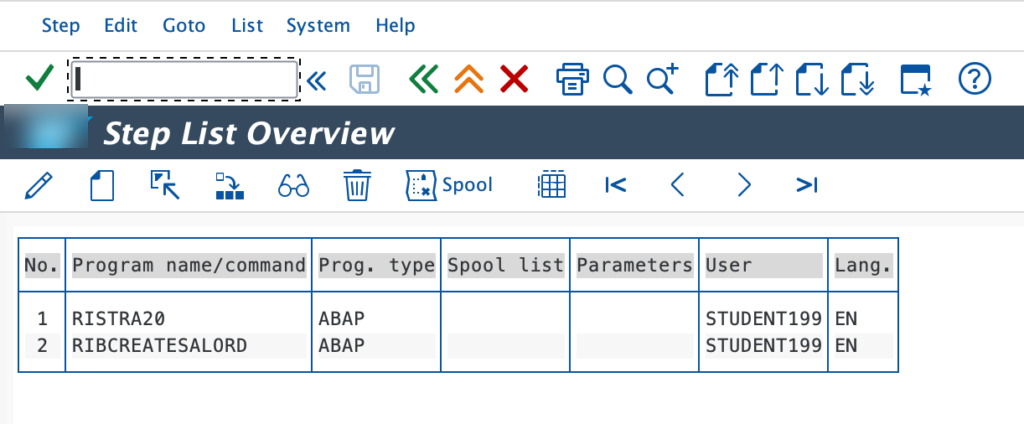
A team or module prefix in the job name (for example a department code followed by the process name) makes SM37 filterable in a single entry. Six months later, when you need to find out who created what, that convention will make the difference between two minutes and half a day.
If you are just getting started, the Job wizard in SM36 walks you through the same choices step by step. And if your goal is to automate mass data entry rather than a report, the job will often execute a batch input session.
Start conditions: triggering the job at the right time
The start condition is the trigger. Five modes cover every need:
- Immediate: the job starts as soon as you save.
- Date/Time: start at a precise date and time, the standard mode for the daily report.
- After job: the job starts when another job finishes, to chain dependent processing.
- After event: the job waits for a system or application event, raised by another process.
- At operation mode switch: start when the system switches its operation mode.
Recurrence comes on top of the Date/Time condition: daily, weekly, monthly, or a free interval. This is what turns a single run into an automatism: the job reschedules itself after each execution, and the public course Scheduling Background Jobs details the variants on the official side.
Monitoring your jobs in SM37
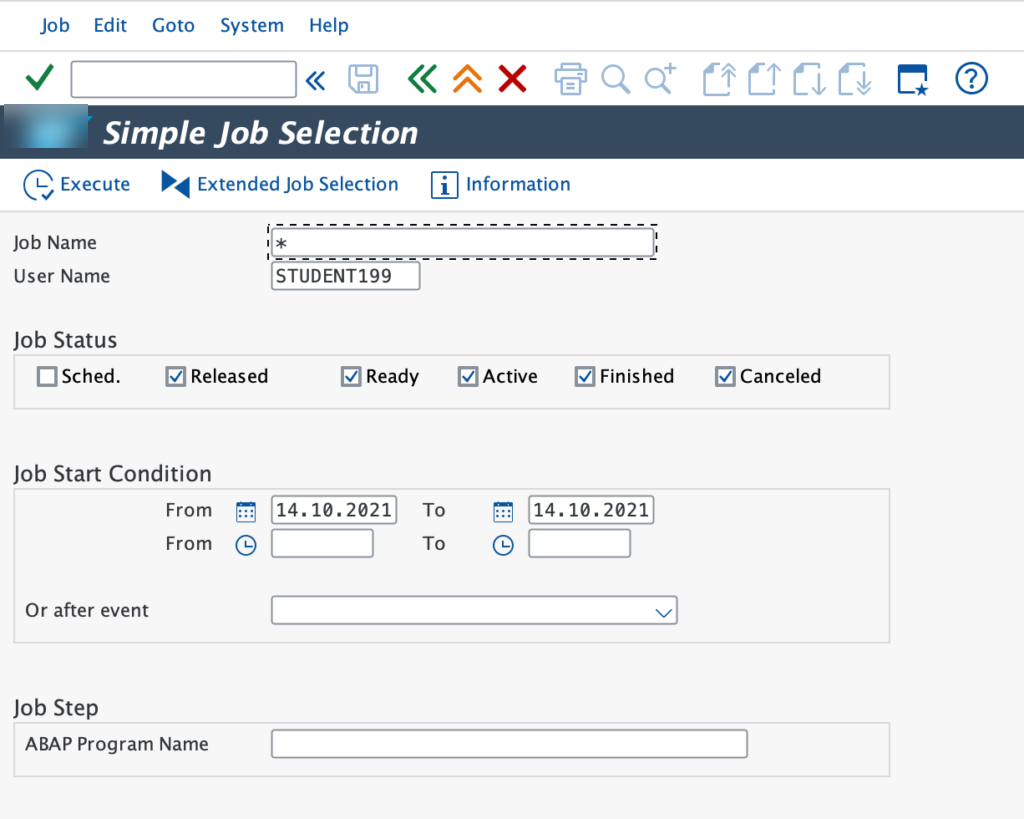
Transaction SM37, Job Overview, opens with a selection screen: job name (the * wildcard is allowed), the user who created it, a date range, and the statuses to include.
The resulting list concentrates the core of job monitoring: the status of each job, its start date and time, its Duration and its Delay, both expressed in seconds.
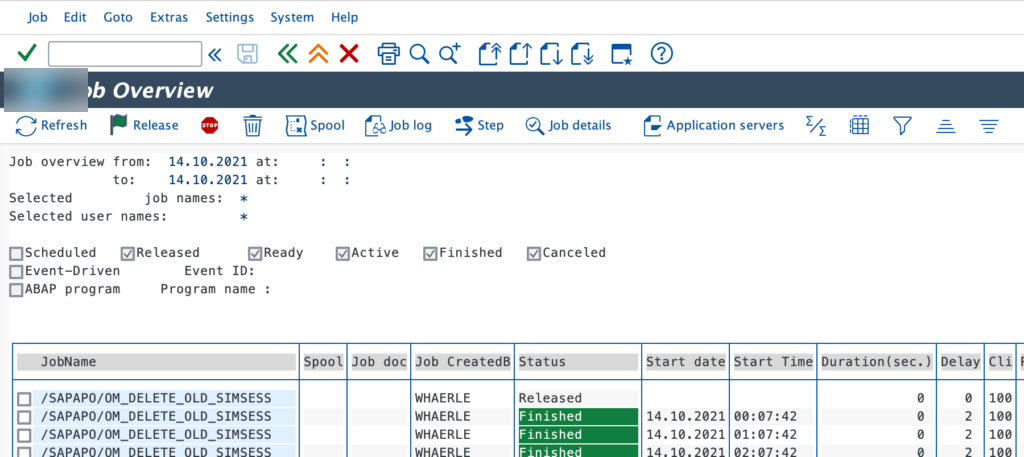
Two readings are worth gold. Duration first: track it over time on a recurring job, a steady drift signals a growing data volume or a degrading program. Then Delay: it is the waiting time between the planned start and the actual execution. A climbing delay points to a system under load at that hour, or to a poorly chosen scheduling window.
The job log: when the job goes wrong
Canceled status? The first reflex is called the job log: select the job in SM37 and open its log. It contains the execution trail, the messages issued by the programs and, in the vast majority of cases, the exact error message that stopped the processing.
The key user reflexes on background jobs
A few habits separate calm job management from a collection of incidents.
- Choose the execution window deliberately: nights for heavy processing, never the business peak hours.
- Reserve Job Class A for genuinely critical processing: it is a resource access priority, not a badge of importance.
- Check the spool of jobs that print or generate lists: a Finished job with a failed spool is a false success.
- Review your recurring jobs periodically: orphan jobs, whose output nobody reads anymore, burn resources for nothing.
Jobs run on background work processes, available in limited numbers on every system. A heavy job launched in the middle of the day, in Job Class A on top of that, monopolizes those resources at the expense of every other process. If a job can wait until night, make it wait until night.
The SAP background job is one of those cross-module fundamentals that pay off everywhere: once you have tamed SM36 and SM37, you know how to automate a process, read its state and diagnose its failure. And when the job log is not enough, the diagnosis is handed over to a technical profile: our ABAP debugger guide documents the tool they will reach for.
FAQ: your questions about SAP background jobs
What is the difference between SM36 and SM37?
SM36 (Define Job) is used to create and schedule a job: name, class, steps, start condition and recurrence. SM37 (Job Overview) is used for monitoring: finding jobs, reading their statuses, their Duration, their Delay and their job log.
What do the Scheduled, Released and Active statuses of an SAP job mean?
Scheduled: the job is defined but has no validated start condition, it will not start as is. Released: the condition is set, the job is waiting for its time. Active: it is running right now. The full cycle adds Ready (waiting for a work process), then Finished or Canceled.
Which Job Class should I choose between A, B and C?
The class defines the priority for accessing background resources. C is the standard class for most processing, B an intermediate priority, and A is reserved for genuinely critical jobs whose delay has a direct business impact.
How do I schedule a periodic background job in SAP?
In SM36, set a Date/Time start condition, then tick periodic execution and pick the frequency: daily, weekly, monthly or a free interval. After each run, the system automatically schedules the next occurrence.
Why does my SAP job stay in Released status and never start?
Released means the planned time has not arrived yet, or the condition (event, preceding job) has not occurred yet. If the time has passed and the job sits in Ready, the system is waiting for an available background work process: watch the Delay climb in SM37.
Keep reading
ABAP Debugger Tutorial: Debug an SAP Transaction with /h, Breakpoints and Watchpoints
A dump just landed on your transaction, or a field shows an amount nobody can explain. How do you see what the program is actually doing, without being a developer?...
 Michael A.
SAP Learning Hub: review, price, and is it worth paying to practise?
As soon as you start looking to train seriously on SAP, one name keeps coming up: SAP Learning Hub. And with it, the same quietly asked question: is it really...
Michael A.
SAP ECC vs S/4HANA: the key differences for your SAP career
If you look into SAP for your career, two acronyms keep coming up: ECC and S/4HANA. One is the older generation of SAP's ERP, the other is the current version....
Michael A.
Split Valuation in SAP MM: Configure It Step by Step
Split valuation in SAP MM lets a single SAP material carry several distinct stock values, managed by valuation type. In plain terms: one material number in the master record, but...
Michael A.