SAP Document Flow: Trace an Invoice Back to Its Order (VBFA)
It is 9:10 in the morning. A customer is disputing an invoice and wants your answer before noon. You have an invoice number, and nothing else.
Good news: you don’t have to rebuild the story from memory. When SAP creates one document from another, it keeps the link. That trace is called the SAP document flow, and you can read it on screen from any document in the chain.
The catch is reading it in the right direction. Almost everything written on the topic walks down the chain, from the sales order to the invoice. This morning, you need to walk back up.
- The reversal: everyone describes the chain from the sales order to the invoice. Your real work starts from the invoice and goes back up.
- SAP keeps the link: each document is created with reference to another one, and that chain is stored. The document flow is that trace, nothing more.
- The same trace can be read from both ends: it is not a view “from the sales order”. SAP attaches it to the sales order and to the invoice alike, with the same value.
- No special authorization: the flow is a display function. From
VF03, you reach it through the Environment menu. - The word that matters is “partially”: a document is not just processed or not processed, and that is what explains contradictory statuses.
- A missing link is information: the flow records the gap, it never explains it. That alone turns a vague question into a precise request.
- VBFA is the table behind the screen: the same information, without the formatting. The word helps you understand IT, not access anything.
Where does this invoice come from? SAP keeps the link
Every document is born from another (and remembers it)
In SAP SD, a sales process is not one block. It is a series of steps, and each step is recorded as a document. These documents are not created side by side: they are created with reference to one another. A delivery is created with reference to a sales order. An invoice is created with reference to a delivery or to a sales order.
That chain is what SAP stores. SAP’s documentation talks about the preceding document and the subsequent documents: each document knows what it comes from, and what was created from it. The whole chain is the document flow.
The flow is the trace that the order-to-cash cycle leaves in SAP SD. It records what happened, document after document, without deciding anything.
Why key users always end up there
Because the questions that land on your desk are almost always backward-looking. Nobody calls you to say a sales order has just been created. People call you when something doesn’t add up, and the document they hold is almost always at the end of the chain.
“What is this invoice?” “The customer says nothing arrived.” “Has this order been billed or not?” Three everyday requests, one screen to answer them. You need no special authorization and no knowledge of code: the document flow is a display function.
Going down or going up: the two directions of the flow
The flow reads both ways. The same screen answers two opposite questions, depending on the document you open it from.
Downstream: what came out of this sales order?
You start from a sales order and look at what was created next. Was a delivery created? An invoice? Several of them? This is the best documented direction, and the most intuitive, because it follows the natural course of the process.
It is the useful direction when you want to check the progress of something you already know.
Upstream: what is this invoice attached to?
You start from an invoice and work back up. Which delivery does it come from? And that delivery, from which sales order? This is the real direction of your daily work, and the one nobody explains to you.
The flow is not tied only to the sales document. SAP attaches it to the structure of the sales order and to the structure of the invoice alike. So you can start from the invoice just as well as from the sales order: you read the same trace, seen from the other end.
Trace an invoice back to its sales order, step by step
You start from the document in hand, and the sequence is always the same.
-
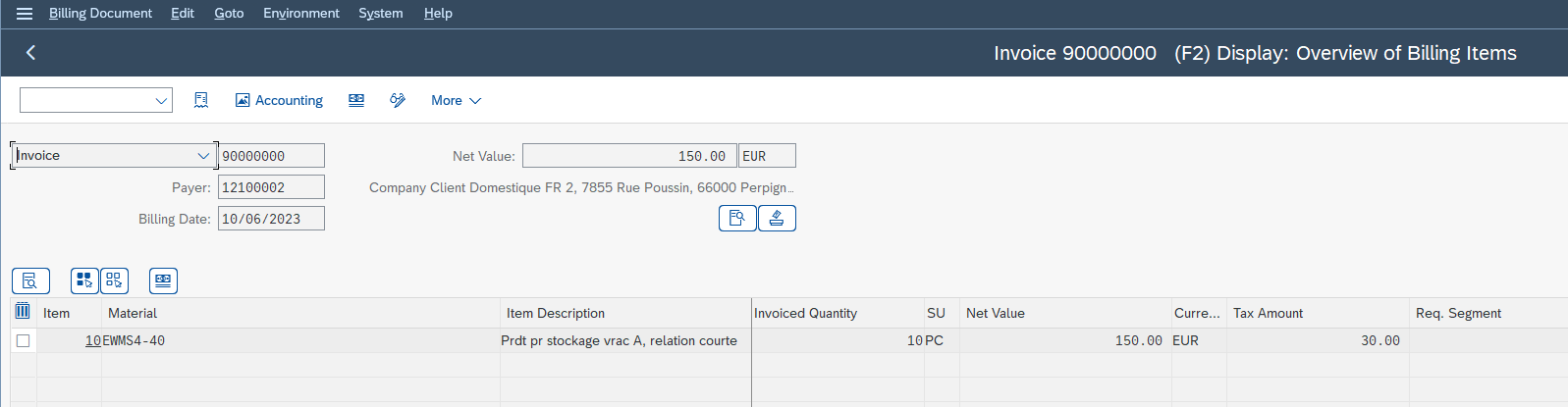
1Display the invoice
The transaction to display a billing document is
VF03. You can enter it directly, or go through the SAP menu.SAP menu:
Logistics → Sales and Distribution → Billing → Billing Document → Display
Enter the invoice number the customer gave you and confirm.
-
2Open the document flow
In the menu bar of the invoice screen, open Environment, then choose Display document flow. If you start from a sales order displayed with
VA03, the toolbar also offers a Display Document Flow button that leads to the same screen. -
3Read the list that appears
You don’t just see the neighboring document: the whole chain fits on a single list. Your invoice is there, and above it the documents it comes from.
-
4Spot the preceding document you need
Working up from the invoice, you find the delivery, then the original sales order. That is the order number you were looking for.
-
5Open it without leaving the flow
Select the sales order line, then click Display Document. The sales order opens in display mode.
-
6Go back to the flow
You return to the list and carry on investigating another branch.
Six steps, one pivot screen. Once the reflex is there, the question “where does this invoice come from” takes less than a minute.
Reading the flow: what each line tells you
The document, its date, its quantity
Each line of the flow is a real document, with its number, its type and its date. That is already a lot: the chronological order tells you in which order things happened, and the quantities tell you whether everything went through at once or in several goes.
One more thing to know when reading the screen: SAP keeps two counts in parallel, one for the document header and one for each of its lines (the items). A document can therefore look complete from the top while one of its items is still waiting for a follow-up.
What the status means when you see it
The flow does more than list. Select a line, then choose Status overview: SAP tells you where that specific document stands. On a sales order, you see where the delivery stands. On an outbound delivery, where picking and billing stand. On an invoice, whether it has been posted to accounting.
A document is not just processed or not processed. Picture a quotation for 10 pieces where the customer ordered only 4: the quotation shows a status such as Partially referenced, and the remaining 6 pieces can still be used. That exact case explains the situations where “the order is delivered” and “the order is not delivered” are both true.
At this stage, just take note. Understanding why a header status and an item status differ is a topic in its own right, and it is not what the flow asks you to do.
When a link is missing: reading an incomplete flow
The most interesting part of a flow is often what is not there. The table translates the most common cases.
A missing link is information, not a broken screen.
| What you see in the flow | What it can mean | Where to go next |
|---|---|---|
| A sales order, no delivery | Nothing has been shipped. There are many possible causes, and one of the most common is a sales order blocked for credit. | The flow tells you there is no delivery. It does not tell you why. |
| A delivery, no invoice | The goods have left, billing has not followed. Either it has not been run yet, or it is being held. | Check the billing status of the delivery before alerting anyone. |
| A sales order, several deliveries | Normal situation. The chain branches out as soon as an order ships in several goes. | Read the quantities line by line rather than the number of documents. |
| A sales order, no subsequent document at all | Nothing was ever created from it. The flow records that gap, it does not explain it. | Time to ask for help, with the sales order number in hand. |
This table is also your best defense against pointless back-and-forth. A request like “sales order 12345 still has no delivery in its flow, can you look into why” works far better than “there is a problem with an order”.
VBFA: the table behind the screen
At some point, someone from IT will tell you to “look in VBFA”. You may as well know what they mean.
VBFA is the SD document flow table. That is where SAP stores the links between documents, exactly what the flow screen shows you in plain form. The information is the same, without the formatting.
One detail confirms what we said earlier about the two reading directions: VBFA appears in the table structure of a sales document as well as in that of a billing document. Both ends of the chain point to the same place.
You don’t need to access VBFA. The word helps you understand the person in front of you and speak the same language. If you want the official reference, see the SAP documentation on document flow.
What the flow won’t tell you
The flow answers the question “which document”, and that one only.
It won’t tell you why this amount. If the customer disputes the price rather than the existence of the invoice, you traced the right chain but you are asking the wrong question: pricing determination is where to look.
Nor does it say why the chain stops: it only shows where. The cause is found on the document concerned.
When a sales order stands alone, with nothing downstream, the flow records the gap and stops there. Yet that is the most useful piece of information of your morning, because it turns a vague question into a precise request.
Frequently asked questions
How do I find where an invoice comes from in SAP?
Open the document flow from the invoice itself. SAP lists the documents it comes from, up to the original sales order. From the invoice display screen, you reach it through the Environment menu, and you can open any document on the list without losing the flow.
How do I check whether a sales order has been billed?
Open the document flow from the sales order and look at what was created downstream. Billing documents appear there with their status. Partial billing shows up too: if only part of the quantity was copied, SAP says so rather than showing a simple yes or no.
What is the VBFA table in SAP?
VBFA is the SD document flow table: it stores the links between documents, which the flow screen displays in plain form. As a key user, you don’t need to access it. It is mostly the word IT will use when they talk to you about this topic.
Why does my sales order have no delivery in the document flow?
The flow records the gap, it does not give the cause. Several reasons are possible, and a credit block is one of the most frequent. The right reflex is to open the sales order from the flow and check its status, then pass the order number on to the right person.
Why does a sales order have several deliveries?
Because the chain branches out as soon as an order ships in several consignments. That is normal behavior. In that case, read the quantities on each line rather than counting documents: it is the only way to know what is still to be delivered.
Summary
SAP keeps the link between the documents it creates from one another, and that link can be read on screen from either end of the chain. The right reflex is not technical at all: read the chain backwards, starting from the document you actually hold.
Next time an invoice lands on your desk with no explanation, open it and check its flow before calling anyone. More often than not, you will have your answer before you pick up the phone.
If your internal teams regularly face this kind of question, Key User Training offers SAP training designed for key users.
Keep reading
How to Read MD04 in SAP: Stock/Requirements List Explained
How to Read MD04 in SAP: The Stock/Requirements List Explained Available quantity goes negative on October 19. The planner calls the supplier in a hurry, and the order she pulls...
 Michael A.
SAP Account Determination: How OBYC Picks the G/L Account
SAP Account Determination (OBYC): From Goods Movement to G/L Posting You post a goods receipt in MIGO. You enter a material, a quantity, a purchase order. At no point does...
Michael A.
SAP Object Locked by Another User: What It Means (SM12)
SAP Object Locked by Another User: What It Means (SM12) An object locked by another SAP user and an object you have no rights on feel exactly the same: everything...
Michael A.
SAP availability check (ATP): sales order not confirmed
SAP availability check (ATP): why your sales order is not confirmed The stock is right there on your screen, the sales rep is calling, and the confirmed quantity on the...
Michael A.