You just typed LTMC in a recent S/4HANA system and the cockpit refuses to create a single project? That is expected. The SAP LTMC transaction has been deprecated since S/4HANA 2020, and read-only since the 2021 release.
Its successor is called Migrate Your Data, a Fiori app that carries the migration cockpit concept forward and consolidates it. This guide covers what changed, what still applies, and how to run a data migration to SAP S/4HANA today.
- The
LTMCtransaction is deprecated since S/4HANA 2020 (Cloud 2008) and read-only since S/4HANA 2021. - Its successor is the Migrate Your Data Fiori app: two approaches instead of three, staging tables and direct transfer.
- Old LTMC projects are not importable into the new app: recreating them is mandatory.
LTMOMremains the modeling tool for custom objects, including for Fiori projects.- LSMW is in restricted use (SAP Note 2287723): reserve it for winding down what already exists.
SAP LTMC in 2026: a deprecated transaction, not a dead concept
LTMC, short for Legacy Transfer Migration Cockpit, was for several years the standard data migration tool for SAP S/4HANA. The principle: migration projects, objects pre-modeled by SAP, templates to fill in, and an engine that pushes the data into the target system without a single line of ABAP.
That principle has not gone anywhere. It is the transaction that is being switched off. SAP deprecated LTMC starting with S/4HANA 2020 on-premise and S/4HANA Cloud 2008, as confirmed on the official Migration Cockpit deprecation page. In practice, since S/4HANA 2021:
- existing LTMC projects remain accessible, but in display mode only;
- creating new projects in the transaction is no longer possible;
- any new migration work goes through the Migrate Your Data Fiori app.
The LTMC reflex dies hard on projects, and the tcode is still what everyone types into Google and into the command field alike. In 2026, though, searching for LTMC should lead you straight to its successor.
From the deprecated LTMC transaction to the Migrate Your Data Fiori app: what changes, what stays
The switch is not a simple change of interface. SAP used it to simplify the tool’s architecture, and three evolutions really matter in daily work.
| Dimension | LTMC transaction | Migrate Your Data Fiori app |
|---|---|---|
| Status in 2026 | Deprecated (S/4HANA 2020), read-only since 2021 | Active standard tool |
| Interface | GUI transaction opening a web cockpit | Native Fiori application in the launchpad |
| Approaches | 3 presented: file, staging tables, direct transfer | 2 consolidated: staging tables (file or database), direct transfer |
| Old projects | Accessible in display mode only | Import impossible: recreation required |
| Migration objects | Pre-modeled standard objects | Same objects, catalog extended with each release |
| Extension | LTMOM | LTMOM (unchanged) |
| Mass Transfer ID | 3 characters, identical in quality and production | Identical (concept kept) |
First, the interface. The cockpit now lives in the Fiori launchpad, with proper tile management, authorizations and search. No more back and forth between SAP GUI and a browser.
Second, the migration approaches. LTMC presented three: external files, staging tables, and direct transfer from an SAP system. Migrate Your Data consolidates them into two. The file is no longer a standalone approach: the template you fill in now feeds staging tables that the cockpit creates automatically. You populate them either through file upload or directly in the database. The second approach, direct transfer, reads the data in the source SAP system.
Third, and this is the part that hurts on systems in the middle of a conversion: old LTMC projects cannot be imported into the new app. No conversion tool exists between the two worlds. A migration project started in LTMC either finishes in LTMC or gets recreated in Migrate Your Data.
What stays, on the other hand, is substantial: the migration objects pre-modeled by SAP, the staging tables concept, the Mass Transfer ID, the templates to fill in, and the LTMOM transaction to extend objects. If you knew LTMC well, you are not starting from zero.
The two migration approaches in the S/4HANA migration cockpit: staging tables and direct transfer
Choosing the approach is the first decision of any data migration project. It depends on where your data comes from.
Staging tables: the universal route
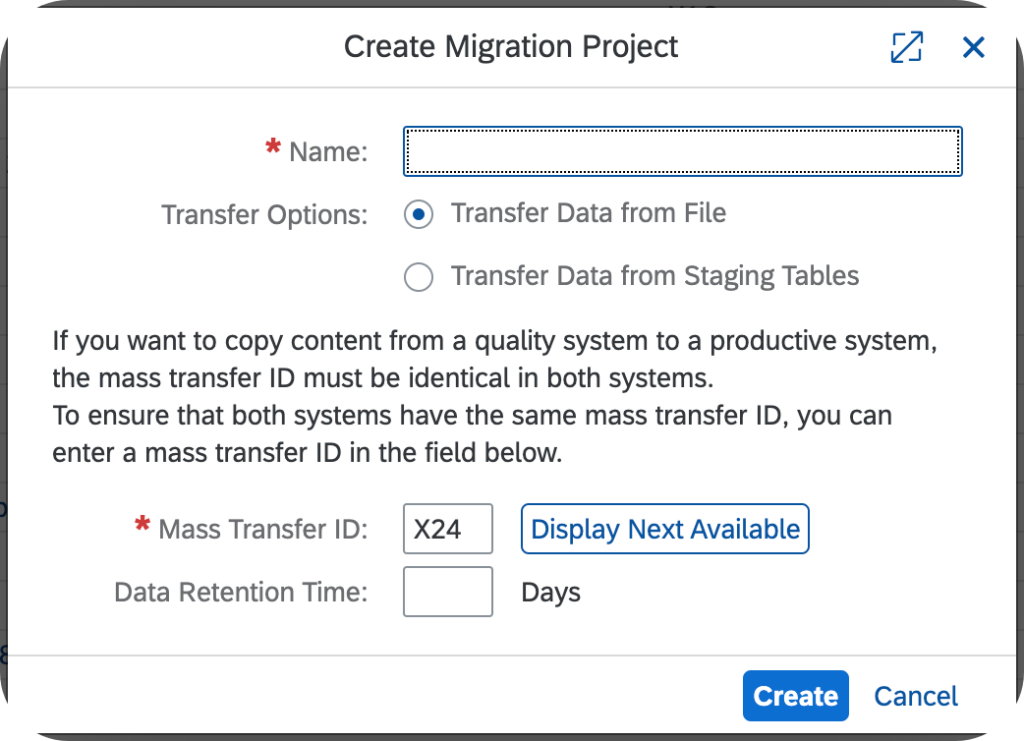
The staging tables approach covers every case where the data does not come from an SAP system: a competing ERP, consolidated Excel files, extracts from a homegrown legacy application. For each migration object activated in the project, the cockpit automatically creates the corresponding staging tables, as detailed in SAP KBA 2733253.
There are two ways to fill them: either you download the object’s template, fill it in and upload it in the app, or you write directly into the staging tables with your ETL tool. The first suits reasonable volumes handled by key users. The second becomes relevant as soon as volumes grow or loads repeat: no limits tied to file processing, and a clean integration with data preparation tools.
Direct transfer: from SAP to SAP
Direct transfer applies when the source is itself an SAP system, typically an ECC to S/4HANA migration. The cockpit connects to the source system, selects the data in the original tables and transfers it without going through a file. Selection is configured at project level, and the migration objects dedicated to this approach carry the extraction logic.
Since release OP2025 FPS1, SAP has even brought the two worlds closer: direct transfer can use staging tables as intermediate storage, which lets you adjust the extracted values before the migration continues.
Creating and running a migration project in Migrate Your Data, step by step
The operational workflow remains very close to what LTMC users knew. Here is the full sequence for a staging tables migration.
-
1Create the project and set the Mass Transfer ID
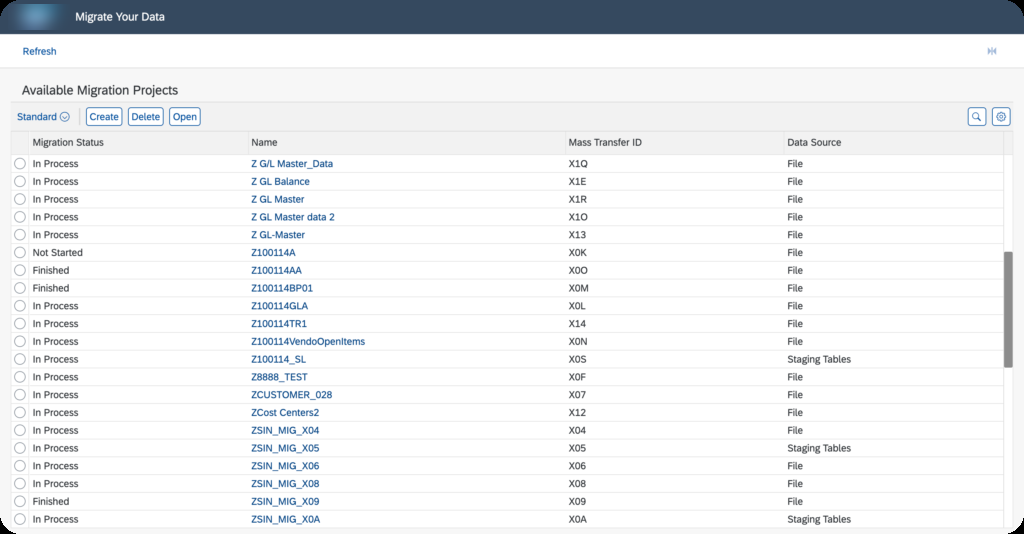
In the Migrate Your Data Fiori app, create the project and pick a 3-character Mass Transfer ID, identical between quality and production.
-
2Select the migration objects
Activate the standard objects the project needs: customers, suppliers, materials, fixed assets, balances.
-
3Download the templates
For each object, download the template to fill in, in XML or CSV format since release 2025 FPS0.
-
4Fill the staging tables
Fill the template with the prepared data and upload it, or write directly into the staging tables through your ETL tool.
-
5Simulate the migration
Run the simulation: format, consistency and duplicate checks now come back in a single pass.
-
6Fix, then simulate again
Work through the reported errors and rerun the simulation until the result is clean.
-
7Execute and validate in the target system
Run the actual migration, then validate a sample of the data directly in the target system’s transactions.
One detail that is anything but minor: if you plan to transport the project content from your quality system to production, the Mass Transfer ID must be identical in both environments. Set a naming convention on day one.
On error handling, release 2025 FPS0 brought a very tangible improvement: consistency errors, duplicates and validity checks now show up in a single pass. No more fixing one error, re-uploading, discovering the next one, and starting the cycle over. Anyone who has lived through that ping-pong on a material load will appreciate it.
Once the simulation is clean, you run the actual migration, then validate the created data in the target system. Transaction by transaction if necessary: a sample of material masters opened in the system is worth more than any migration report.
Your old LTMC projects: what can you still do with them?
The question comes up on every converted system: a history of LTMC projects exists, and the team wants to know what becomes of it. The answer is short.
Your projects remain readable, for one. The LTMC transaction still opens and displays the projects, their objects and their mappings. You can document what was done, retrieve the conversion values used at cutover, and audit a past migration.
Nothing migrates automatically, however. LTMC projects cannot be imported into Migrate Your Data, because the internal formats of the two tools are incompatible. To rerun a recurring migration, you have to recreate the project in the Fiori app and reselect the objects.
No conversion tool exists between LTMC and Migrate Your Data. If a recurring migration still runs on an LTMC project, plan its recreation in the Fiori app before your next release upgrade: every release moves the transaction closer to outright removal.
Your custom mappings, though, are not lost. Object modifications made in LTMOM can be reviewed and carried over: open the old object next to the new one and transpose the added fields and the mapping rules. It is manual work, but bounded and easy to document.
LTMC vs LSMW vs Migrate Your Data: which tool for which scenario in 2026
The tooling question comes back on every project, because three generations of tools still coexist in people’s minds and sometimes in the systems.
LSMW first. The Legacy System Migration Workbench still physically exists in S/4HANA, but SAP sealed its strategic retirement in Note 2287723: restricted use, an entry on the Simplification List, no functional evolution. The limits are structural, not cosmetic: transaction recording does not work on Fiori screens, and major interfaces have changed, starting with the Business Partner and its CVI integration. Using LSMW in 2026 means building on a tool its vendor has stopped maintaining. We cover it in a dedicated guide: LSMW in S/4HANA, what still works and what breaks.
Migrate Your Data next: it is the default tool for any data migration whose object exists in the standard catalog. Customers, suppliers, materials, stock, fixed assets, accounting balances: the pre-modeled object is already there, with its template and built-in checks.
That leaves the cases outside its scope: data without a standard migration object, mass corrections during the system’s lifetime, one-off loads on specific transactions. Batch input via SM35 keeps its place on that ground, fed by an SHDB recording when the transaction lends itself to it. The full arbitration between these tools goes beyond this article, but the basic rule fits in one sentence: standard migration object available, Migrate Your Data; no object and a one-off need, batch input; LSMW, only to wind down what already exists.
Extending the migration cockpit with LTMOM: custom objects and additional fields
The cockpit ships with pre-modeled migration objects, but no real project fits entirely into the standard. A Z field on the material master, a specific classification, a homegrown business object: that is where LTMOM, the Migration Object Modeler, comes in.
LTMOM remains an SAP GUI transaction, and it is not deprecated: it is the cockpit’s official modeling tool, including for projects created in the Fiori app. You open your project in it, and you can modify a standard object, add fields to it, adjust the mapping rules, or model a fully custom object. Since 2025 FPS0, CSV templates can also be downloaded directly from LTMOM.
The topic deserves an article of its own, and it has one: our complete LTMOM guide details the four-phase modeling workflow, from copying a standard object to mapping custom fields.
What changed in 2025 and best practices for your next migrations
The tool keeps evolving every year, and the 2025 releases brought two changes worth knowing: grouped display of validation errors in staging, which drastically shortens correction cycles, and staging tables as intermediate storage for direct transfer, which opens a control point on the extracted data before injection.
Beyond the new features, a few practices make the difference between a controlled migration and a cutover that slips:
- Set the Mass Transfer ID convention before creating the first project, and align quality and production from the start.
- Treat each migration object as a mini-project: template, test data set, simulation, business validation, and only then the full volume.
- Measure the real data volume early: it drives the choice between filling staging tables by file and writing into them directly.
- Rehearse the cutover at least once with production volumes: load times are part of the go-live schedule.
- Document the mappings in LTMOM as you go: it is your only traceability the day the migration gets audited.
Data migration remains one of the most underestimated workstreams of an S/4HANA project. The tooling, on the other hand, has matured: Migrate Your Data now does cleanly what LTMC promised, provided you work with the current approaches rather than the reflexes of 2019. The logical next step if this applies to you: our LTMOM guide, for the day the standard is no longer enough.
FAQ: your questions about SAP LTMC and Migrate Your Data
Does the LTMC transaction still exist in S/4HANA?
Yes, but read-only. Since S/4HANA 2021, the LTMC transaction only lets you display existing migration projects. Creating new projects is no longer possible: that goes through the Migrate Your Data Fiori app.
What replaced LTMC in SAP S/4HANA?
The Migrate Your Data Fiori app, officially named Migrate Your Data – Migration Cockpit. It carries over the project and migration object concept from LTMC with two approaches: staging tables and direct transfer. It has been the standard tool since S/4HANA 2020 and S/4HANA Cloud 2008.
Can you import old LTMC projects into Migrate Your Data?
No. The internal formats of the two tools are incompatible and SAP provides no conversion tool. Old projects remain accessible in LTMC in display mode; to rerun them, you have to recreate the project in the Fiori app and manually carry over the custom mappings via LTMOM.
What is the difference between LTMC and LSMW?
LSMW is the historical data migration tool from the ECC era, based on transaction recording; LTMC and then Migrate Your Data are its S/4HANA successors, based on pre-modeled migration objects. LSMW is in restricted use in S/4HANA (SAP Note 2287723): its recording does not work on Fiori screens and it no longer receives any updates.
What is the Mass Transfer ID in an SAP migration?
It is the 3-character technical identifier of a migration project. It must be identical between the quality system and the production system so the project content can be transported from one environment to the other. Set a naming convention before creating the first project.
Do you still need LTMOM with the Migrate Your Data Fiori app?
Yes. LTMOM, the Migration Object Modeler, remains the official transaction for extending migration objects: adding custom fields, mapping rules, fully custom objects. It works with projects created in the Fiori app and, since 2025 FPS0, also lets you download the CSV templates.
Keep reading
SAP Functional Specification: WRICEF template and pitfalls
Most SAP consultants treat the functional specification as administrative drudgery to dispatch before getting to the real work. Rookie mistake. A well-written FS decides on its own whether the development...
 Pierre B.
SAP Rollout guide: multi-site method with SAP Activate
Most project managers running their first SAP rollout discover after a few weeks that they are managing not an IT project but a transformation of the business operations. The technical...
Pierre B.
SAP SD Pricing Determination: The Condition Technique
Sooner or later, on a project, a user shows you a sales order and asks why the displayed price is not the one they expected. You open the line, you...
 Michael A.
SAP ECC vs S/4HANA: the key differences for your SAP career
If you look into SAP for your career, two acronyms keep coming up: ECC and S/4HANA. One is the older generation of SAP's ERP, the other is the current version....
Michael A.