SAP SM30: maintain a customizing table without a developer (and when to use SM31 or SE11)
A consultant forwards me a screenshot: “Michael, the client wants to add three rows to a customizing table, and the technical team is quoting two days of development. Is that normal?” No, it isn’t normal. In nine cases out of ten, this kind of update takes a few minutes with SM30, without touching a single line of ABAP and without tying up a developer. The “we need a dev” reflex wastes time and money for nothing, simply because no one took ten minutes to explain what the SM30 transaction actually does, where it stops, and at what point you genuinely need to call someone.
This article puts these moves back in the right order. You’ll see how to maintain a customizing table with SM30, how to tell whether SM30 is enough or whether you need to switch to SM31, SE11 or SE16N, and above all how not to break anything: the right client, the transport request, the authorizations. It’s the daily work of a key user who knows how to work cleanly.
SM30 (Call View Maintenance) lets you maintain or display the data of a SAP table or view that has a generated maintenance dialog: you add, edit or delete customizing entries with no developer and no ABAP. As soon as you need to create the table structure or its maintenance generator, you switch to SE11, on the developer side.
What is SM30? (Call View Maintenance in plain terms)
SM30 is the Call View Maintenance transaction: it opens the maintenance dialog of a SAP table or view to display and edit its data. In practice, you type a table name into the SM30 screen, and SAP shows you a grid where you can add, edit or delete entries, like a guard-railed spreadsheet.
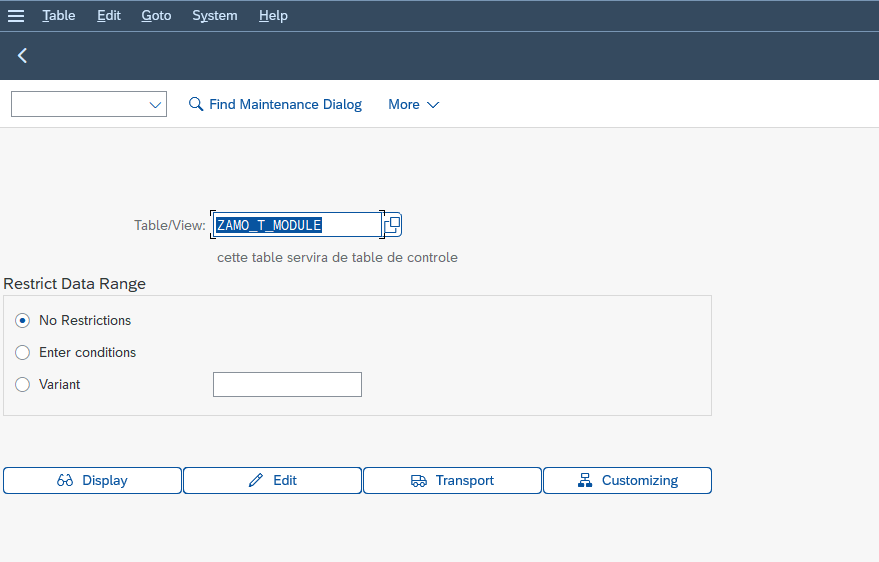
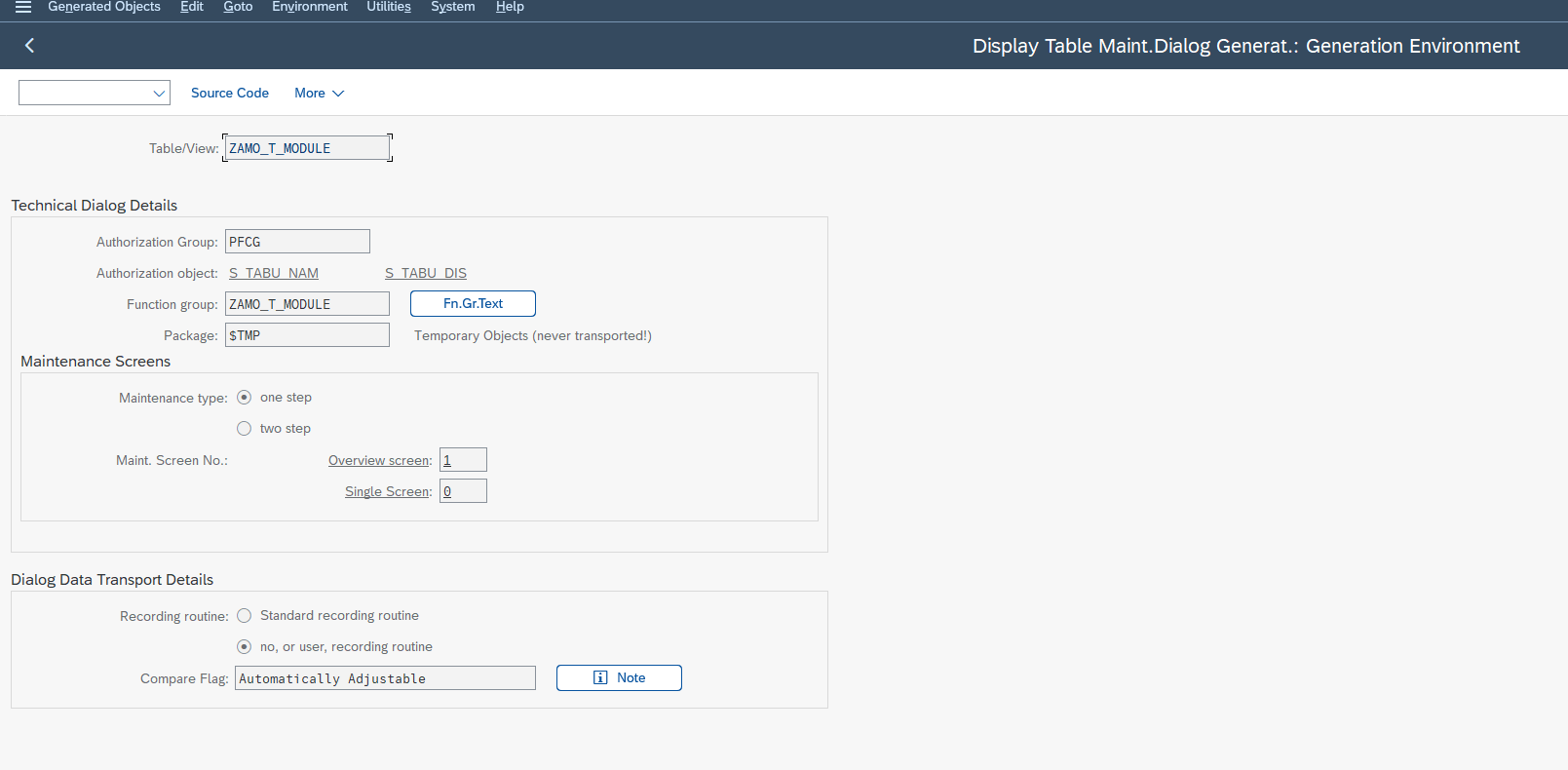
The key word here is “guard-railed”. SM30 does not open the table in raw access: it goes through a generated maintenance dialog, meaning a small program and a screen that SAP built specifically for that table. This generator is called the Table Maintenance Generator (TMG). It is what decides which fields are visible, which ones are editable, and what input checks apply.
The direct consequence, and this is the first thing to remember: a table can only be maintained in SM30 if it has a maintenance generator. If the table doesn’t have one, SM30 will return a message along the lines of “maintenance is not allowed” or “no maintenance generator for this table”. That is not a mistake on your part; it simply means nobody generated the dialog on the ABAP Dictionary side (more on that with SE11).
One last point of vocabulary, because it avoids a lot of confusion: SM30 is mainly for customizing data: the tables that drive how the system behaves, not transactional business data like a sales order or a delivery. Maintaining a customizing table and creating a sales order are two very different kinds of action, even if the screen looks like a grid in both cases.
Maintaining a table with SM30, step by step
Here is the standard flow to add or edit an entry. Nothing magical, but each step has its role.
-
1Check your client first
You are logged into a specific client (the SAP client). A customizing table edited in one client does not magically propagate to the others: that’s what the transport handles. Before any input, make sure you are in the right environment (usually a customizing client, not production directly).
-
2Run the SM30 transaction
Type
/nSM30in the command field, or go through the menu. -
3Enter the table or view name
Fill in the field, then choose the mode: Display to view safely, Maintain to edit.
-
4Work in the grid
You can add a row (“New Entries”), edit an existing value, or delete a row. The checks defined in the generator apply as you go (mandatory fields, allowed values).
-
5Save
This is where the most important step for a customizing table happens: SAP usually asks you to attach the change to a customizing request / transport request. You either create a new one or select an existing one. This request is what will later let you replay the change in the other systems (quality, production).
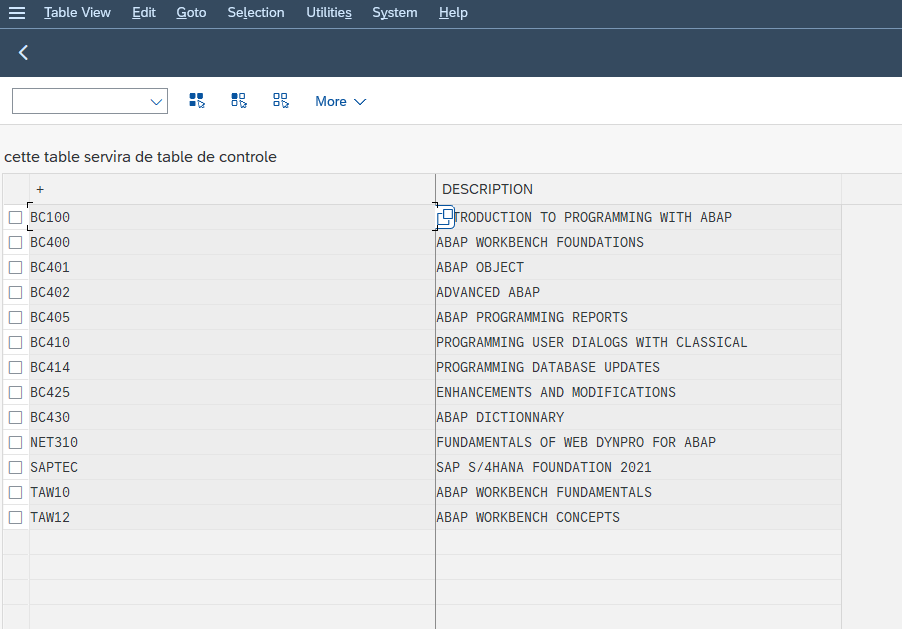
As long as you stay in Display mode, you risk nothing: it’s an excellent way to explore a table before touching it. The committing move is saving in Maintain mode.
A word on the line between editing and plain viewing. If all you need is to look at the content of a table (check a value, understand how some data is configured), you don’t even need SM30. SE16 and its more modern version SE16N display the content of a table read-only, without going through a maintenance generator. It’s the inspector’s tool, not the editor’s. Many key users would gain from reaching for SE16N as a first reflex to explore, and only pulling out SM30 when they really need to write.
SM30 vs SM31: which one to use?
The question comes up constantly, and the answer is simpler than it looks. SM31 is the old table maintenance transaction. Historically, it’s the one we used, but it offered reduced functionality compared to what SAP wanted to provide next.
Since release 4.6, SM31 has been redirected: calling SM31 in practice sends you to extended maintenance, that is, the SM30 engine (“Call View Maintenance Like SM30”). SAP’s official recommendation, documented for a long time in SAP Note 28504 on table maintenance, is clear: use SM30 (the extended table maintenance) for your day-to-day work. The official SAP ABAP documentation on maintenance views confirms that it is indeed the SM30 and SM31 transactions that edit the tables of a maintenance view through extended maintenance.
SM30: the transaction to use
- Extended table maintenance, the engine recommended by SAP.
- Not sure which one to type? Type SM30 and you’ll be in the right place.
- Handles the client, input checks and the link to the transport request.
SM31: the legacy one to avoid
- Old transaction with reduced functionality.
- Since release 4.6, it redirects to the SM30 engine anyway.
- Run into it in old docs or an old course? Read it as “SM30” and move on.
Treat it as a hygiene rule, not a technical debate: SM30 today, SM31 is history.
When do you need SE11 (and that’s when you call a developer)?
This is where the real boundary lies between the key-user move and the developer move, and it’s exactly the point my consultant at the start couldn’t settle.
SM30 maintains the DATA of a table. You fill in, you correct, you delete rows in a structure that already exists. It’s functional work, well within your reach.
SE11 (the ABAP Dictionary) DEFINES the table. It’s in SE11 that the structure is described: the fields, their types, the keys. And it’s also in SE11 (via the Utilities menu) that you generate the maintenance generator that will then make the table editable in SM30, attaching a function group, maintenance screens and an authorization group to it. That work touches the data model: it’s developer scope, not key-user scope.
The split rule is therefore clear-cut:
- The table already exists and has a maintenance generator → SM30, you handle it, without a developer.
- The table exists but has no maintenance generator (SM30 refuses maintenance) → the TMG must be generated in SE11 → you call a developer (or a technical consultant).
- The table doesn’t exist yet, or a field has to be added to it → structure definition / modification in SE11 → developer scope, no discussion.
This “I edit data vs I edit structure” logic is exactly the same one that separates a key user from a developer on other customization grounds. It’s actually the same philosophy I detail in the guide on customizing SAP screens without ABAP using SHD0: adapting SAP’s behavior with the functional tools designed for it, and only switching to the technical side when the need genuinely touches the code or the structure. SM30 for customizing data, SHD0 for screen appearance: two entry doors to “SAP without a developer”, two moves every key user gains from mastering.
SM30, SM31, SE11, SE16N: the decision table
To settle it in three seconds the next time someone asks you to “touch a table”, keep this table handy.
| Your need | The right transaction | Who does the move |
|---|---|---|
| Edit the data of a customizing table (add / correct / delete an entry) | SM30 | Key user / functional consultant |
| Same need, but you run into old docs that mention SM31 | SM30 (SM31 redirects to the SM30 engine since 4.6) | Key user / functional consultant |
| Only view / explore the content of a table (read-only) | SE16 / SE16N | Key user / functional consultant |
| Create or change the structure of a table, or generate its maintenance generator (TMG) | SE11 (ABAP Dictionary) | Developer / technical consultant |
The dividing line is always the same: data → functional (SM30 / SE16N), structure → technical (SE11). Keep that marker in mind and you’ll instantly know whether the request landing on your desk is for you or for the dev.
Authorizations and safeguards: don’t break production
SM30 is powerful, and that’s precisely why it’s framed by authorizations. You don’t let just anyone edit just any customizing table: a wrong value in a customizing table can change the system’s behavior for everyone.
Three authorization objects control access to tables:
- S_TABU_DIS: access by table authorization group. Each table belongs to a group; this object says which groups you’re entitled to, and whether in display or maintenance.
- S_TABU_NAM: access by table name. Finer than the previous one, it lets you authorize a specific table without opening up its whole group.
- S_TABU_CLI: the authorization for cross-client tables. Those tables are particularly sensitive, because a change hits all the system’s clients at once, with no transport.
If SM30 denies you access to a table even though the transaction opens fine, the problem is almost always there: you’re missing the authorization on the right group or the right table name. This is not something to force; it’s a request to raise with your security team, with a justified business need.
Depending on how the client is configured, SAP attaches your customizing table change to a transport request, but it isn’t systematic. When that request exists, it’s not a formality: it’s what will replay your change cleanly in quality and then in production, in the right order and traceably. In practice, you (the key user) attach the change to the request, but it’s usually the technical team that releases it and actually transports it. Editing directly in production, outside transport, remains the surest way to create gaps between systems that nobody can explain anymore six months later.
For a key user who specifically wants to understand this customizing logic end to end (client, customizing, transport) instead of learning the moves one by one the hard way, this is exactly the kind of fundamentals we put back in the right order in the SAP Starter: enough to get a clean grip on SM30 (and its neighbors) rather than fumbling through.
Common mistakes with SM30 (and how to avoid them)
Across missions, it’s always the same traps that come back. Knowing them in advance saves you considerable time.
Mixing up customizing data and application data
SM30 is for customizing, not for entering transactional business data. If you find yourself trying to “add a sales order” through a table, you’re in the wrong place: there’s almost always a dedicated business transaction. SM30 touches the system’s behavior, not the day-to-day flows.
Forgetting the client
Editing in the wrong client is the classic mistake. You enter everything cleanly, you save, and the change doesn’t show up where it’s expected, because it was made in another client. Always check your entry point before writing.
Saving without a transport request
On a customizing table, refusing or “skipping” the transport request condemns you to a change that stays stuck in a single system. Get into the habit of always attaching the change to a request, and noting down its number.
Forcing a table that has no maintenance generator
If SM30 says there’s no maintenance available, it’s not a bug to work around. It’s the signal that you need a maintenance generator (to create in SE11) or that this table simply isn’t meant to be edited by hand. Escalate the need rather than looking for a back door.
Ignoring authorizations
An access denial isn’t a personal failure: it’s the security system doing its job. The right reaction is to file a justified authorization request (S_TABU_DIS / S_TABU_NAM depending on the case), not to try to work around it.
SM30 FAQ
What is the SM30 transaction used for in SAP?
SM30 (Call View Maintenance) lets you maintain or display the data of a SAP table or view that has a generated maintenance dialog. You can add, edit or delete customizing entries with no developer and no ABAP.
What is the difference between SM30 and SM31?
SM31 is the old table maintenance transaction, with reduced functionality. Since release 4.6 it redirects to the SM30 engine (extended maintenance). SAP recommends SM30 (SAP Note 28504). In practice, always use SM30.
SM30 or SE11: which one should I choose?
SM30 is for maintaining the data of an existing table. SE11 (ABAP Dictionary) is for defining the table structure and generating its maintenance generator, which is developer work. Data to edit: SM30. Structure to create or change: SE11.
How do you edit a SAP table without a developer?
Use SM30 if the table has a maintenance generator: you add, edit or delete entries in a guard-railed grid, without writing code. If the table has no generator, it must be created in SE11, and that’s where a developer steps in.
SM30 or SE16N to look at a table?
To only view the content of a table read-only, use SE16 or SE16N: no risk of changing anything and no need for a maintenance generator. Reserve SM30 for cases where you genuinely need to write to the table.
What authorizations do you need to use SM30?
Access to tables is controlled by the authorization objects S_TABU_DIS (by authorization group), S_TABU_NAM (by table name) and S_TABU_CLI (cross-client tables). An access denial means one of these authorizations is missing.
Does SM30 create a transport request?
For customizing tables, SM30 usually asks you to attach the change to a customizing / transport request. That request is what propagates the change to the other clients and systems (quality, production) traceably.
Conclusion
Next time someone tells you “we need a developer” to add three rows to a customizing table, ask the only question that matters: is this about editing data, or editing a structure? If it’s data and the table has its maintenance generator, SM30 is your tool, in a few minutes and with no code. If it’s the structure or the generator itself that’s missing, then yes, SE11 and a developer come into play. In between, SM31 is just a historical shortcut to SM30, and SE16N remains your best reflex for looking without touching.
The next move is simple: open SM30 in your test environment, type the name of a customizing table you know, and stay in Display mode to explore its grid. You’ll immediately see what we’re talking about, and you’ll have taken the first step toward never again outsourcing what’s yours to do.
Keep reading
How to Read MD04 in SAP: Stock/Requirements List Explained
How to Read MD04 in SAP: The Stock/Requirements List Explained Available quantity goes negative on October 19. The planner calls the supplier in a hurry, and the order she pulls...
 Michael A.
SAP Account Determination: How OBYC Picks the G/L Account
SAP Account Determination (OBYC): From Goods Movement to G/L Posting You post a goods receipt in MIGO. You enter a material, a quantity, a purchase order. At no point does...
Michael A.
SAP Document Flow: Trace an Invoice Back to Its Order (VBFA)
SAP Document Flow: Trace an Invoice Back to Its Order (VBFA) It is 9:10 in the morning. A customer is disputing an invoice and wants your answer before noon. You...
Michael A.
SAP Object Locked by Another User: What It Means (SM12)
SAP Object Locked by Another User: What It Means (SM12) An object locked by another SAP user and an object you have no rights on feel exactly the same: everything...
Michael A.