SAP IDoc Guide: How to Read an IDoc, Diagnose an Error (WE02 / WE19 / BD87) and Know When to Use It
A failed SAP IDoc is often a junior consultant’s first real test of self-sufficiency. The business tells you an order never reached the neighboring system, the technical team replies “go check your IDocs,” and then, silence. You know something is moving somewhere between two systems, but you don’t know where to lift the hood. I’ve watched plenty of juniors freeze at exactly that moment, not because the topic is hard, but because no one ever showed them the three or four transactions that diagnose the vast majority of cases.
Good news: reading an IDoc and understanding why it failed doesn’t take a single line of ABAP. It’s a matter of reading, method and the right vocabulary. This guide walks through the topic in the right order, from a functional angle: what an IDoc actually is, how to open one with WE02, how to read its status, how to diagnose an error, then how to replay it with WE19 or reprocess it in bulk with BD87. The goal isn’t to turn you into an interface developer, but to make you able to say precisely what is blocking, and where.
- Read: open the IDoc with WE02 (or WE05) and read it in order, control header, status, then data segments.
- Statuses: inbound, 51 = error (document not created), 53 = success. Always identify the direction before interpreting the code.
- Diagnose: direction and message type, then the status message, then the faulty segment, then fix the cause.
- Act: replay a single case with WE19, reprocess the batch in bulk with BD87. All of it without a line of ABAP.
What Is an IDoc, in Functional Terms?
An IDoc (Intermediate Document) is a structured data container that SAP uses to exchange a piece of business information with another system. Concretely, it’s the standardized envelope in which SAP packs an order, an invoice, a material master or a stock movement to send it elsewhere, or to receive it.
Three concepts are enough to find your way around, and none of them is technical in the developer sense of the word.
Direction: inbound or outbound. An outbound IDoc leaves your SAP system for the outside world. An inbound IDoc arrives from a third-party system into your SAP. This is the very first question to ask when facing an error, because it already steers half the diagnosis: an outbound problem and an inbound problem are not handled in the same place.
The message type. It describes the business nature of the exchange. A message type carries a self-explanatory name: for example ORDERS for a purchase or sales order, INVOIC for an invoice, MATMAS for a material master. Once you can read the message type, you know which business flow you’re dealing with before you even open the content.
The basic type and the segments. The basic type is the technical structure of the IDoc, the “mold” that defines which fields it carries and in what order. Inside, the data is arranged in segments: logical blocks (a header segment, an item segment, a partner segment…) that group fields by topic. Reading an IDoc is largely about knowing which segment holds the information you’re looking for.
Keep this image in mind: the message type says what the exchange is about, the basic type says how it’s arranged, the segments are the drawers. With these three words, you can already hold a credible conversation with an interface developer.
When Do You Use an IDoc (and When Not)?
You use an IDoc whenever SAP needs to communicate with another system in a structured, traceable and replayable way. It’s the historical and still central exchange mechanism for EDI (exchanges with external partners: customers, vendors, carriers) and for cross-system flows, such as synchronization between a central ERP and a warehouse system.
This logic of exchange through structured messages is exactly what you find in the data synchronization between SAP ERP and EWM, where the IDoc is one of the mechanisms that move materials, orders and confirmations between the two systems. If you’re diagnosing flows in that context, understanding the IDoc is a direct prerequisite.
Why use an IDoc rather than something else? Because it’s asynchronous and persistent. The information is dropped into an IDoc, stored, sent, and remains viewable even weeks later. If the exchange fails, the IDoc doesn’t vanish: it stays in error, viewable and replayable. That’s precisely what makes it an excellent diagnostic point for a functional consultant: the trail remains.
When is an IDoc not the right tool? When you want to mass-inject data inside a single SAP system, such as an initial data load or a bulk upload. There, you’re talking about loading via recorded transactions (batch input), or dedicated APIs and services. The IDoc, by contrast, is primarily for exchange between systems and for EDI. Keeping that boundary in mind stops you from hunting for an interface problem when it’s really a loading problem.
Reading an IDoc with WE02 (and WE05) Step by Step
To display and list IDocs, the go-to transaction is WE02; WE05 offers a very similar list view. Always start with WE02: it’s your reading station.
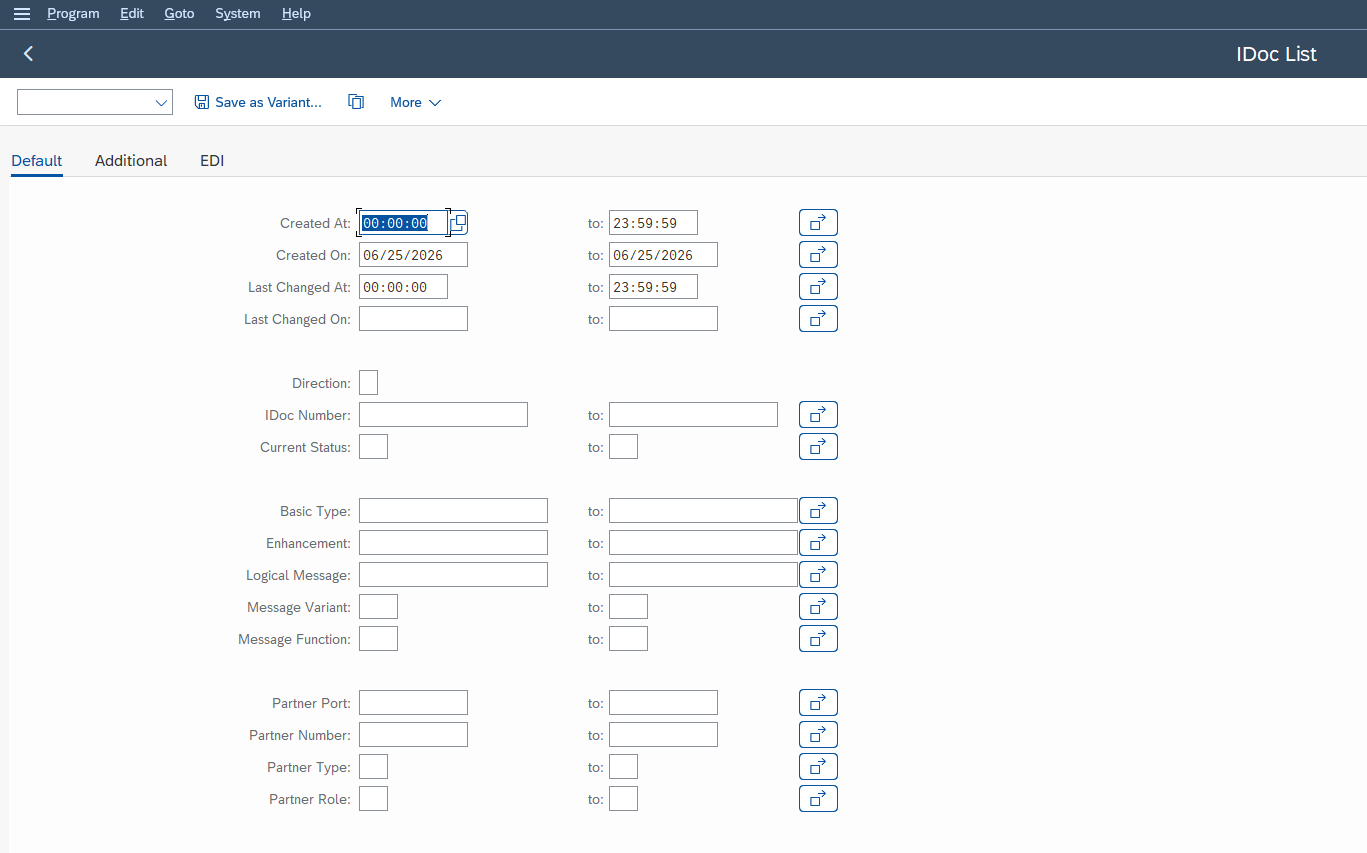
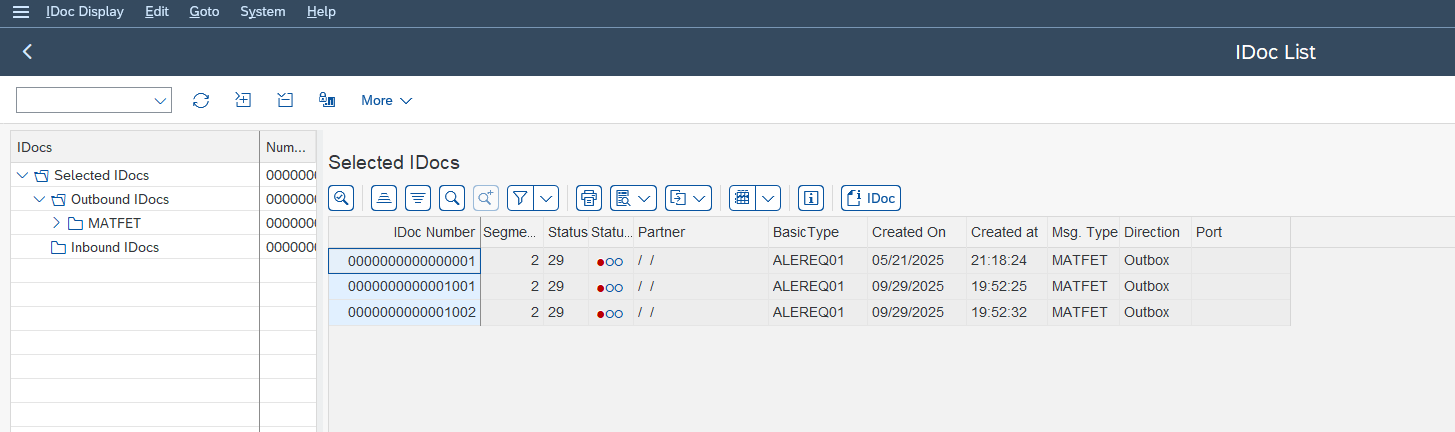
On launch, WE02 presents a selection screen. The criteria most useful day to day are the period (creation date), the direction (inbound / outbound), the status, the message type, and the IDoc number if you already have it. A healthy reflex: narrow by date and message type so you don’t drown the screen under thousands of unrelated IDocs.
Once the list is displayed, open an IDoc. The detail screen is always laid out the same way, and that’s what makes reading repeatable:
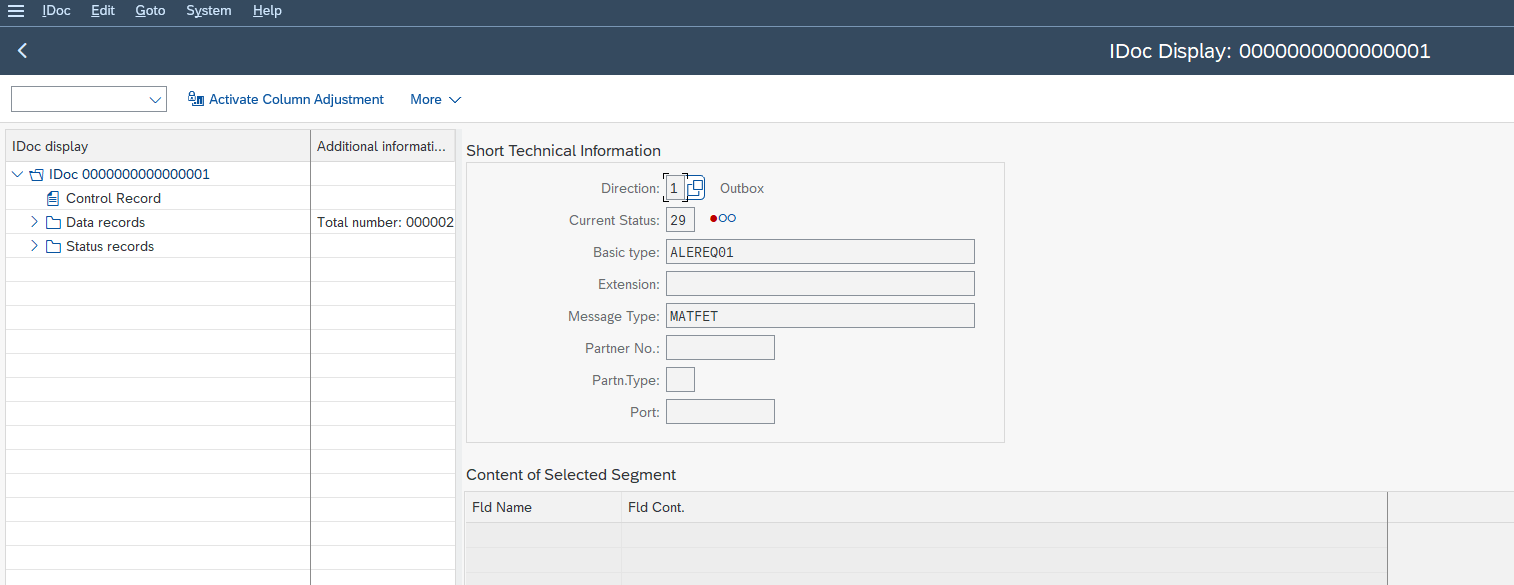
- The control header (control record): the IDoc’s metadata. Here you read the direction, the message type, the basic type, the sending and receiving partner, and the port. It’s the exchange’s ID card.
- The status records: the IDoc’s life history, step by step, with the status code and a message at each step. This is where you read the “why” of an error.
- The data (data records): the business content, arranged in the segments. This is where you check the faulty value (an unknown customer code, a non-existent material, an unrecognized unit…).
The good reading habit is to descend in this order: direction and type first (header), then status (what happened?), then the faulty segment (on which piece of data?). Three layers, always the same.
Understanding IDoc Statuses
An IDoc’s status is a numeric code that tells you where the exchange stands and whether it succeeded. It’s the heart of the diagnosis: before diving into the segments, read the status, it already tells you a lot. First reflex to build: inbound and outbound statuses don’t use the same range of codes, so identify the direction before interpreting the number.
Here are the statuses you’ll meet most often. Stick to these until you’ve checked the others in your own system: the SAP documentation lists more, and some codes carry nuances depending on the context.
| Status | Direction | Meaning |
|---|---|---|
| 51 | Inbound | Error: the application document could not be created. This is the most common inbound error (invalid data, a business check that blocks). |
| 53 | Inbound | OK: the application document was successfully created in SAP. This is the inbound success status. |
| 64 | Inbound | IDoc ready to be passed to the application (received, awaiting processing). |
| 30 | Outbound | IDoc ready to be sent, but not yet dispatched (awaiting dispatch). |
| 03 | Outbound | Data passed to the port (the IDoc has left SAP on the technical side). |
| 12 | Outbound | Dispatch OK: the IDoc was successfully sent. |
| 29 | Outbound | Error in the ALE service: the outbound IDoc could not be sent, usually because of a partner profile (WE20) misconfigured on the outbound side. You reprocess it with the RBDAGAIN program. |
The pair to memorize first is 51 versus 53 inbound: 51 = error, the document doesn’t exist; 53 = success, the document is created. As soon as you see 51, you know the diagnostic work begins, and that it will play out in the status message and the data segment. For statuses you cross less often, the safest move is to click the code in WE02: SAP displays its label, which spares you memorizing an entire table by heart.
Diagnosing an Error: the Four-Step Method
Facing an IDoc in status 51, the worst approach is to look at the data at random. The right approach is an ordered reading, always the same, that isolates the cause before fixing it.
-
1Identify the direction and the message type
Open the IDoc in WE02 and read the control header. Inbound or outbound? Which business flow (ORDERS, INVOIC, MATMAS…)? This step reframes everything else: you now know which SAP document should have been created or sent.
-
2Read the status message
Drill into the status records and read the message attached to status 51. SAP writes there in plain language what blocked: “unknown customer,” “material does not exist in this plant,” “unit of measure not convertible”… Nine times out of ten, the message already gives you the nature of the problem.
-
3Locate the faulty segment and data
Go into the data (data records) and find the segment affected by the message. You thus compare the value transmitted against what SAP expects. This is the step that turns a generic message into a precise cause: this field carries this value, and this value doesn’t exist in the target master data.
-
4Decide on the action
Either the source data is wrong and you must fix it at the source then resend the IDoc, or the target master data is incomplete (a missing customer, material, or loading point) and you must complete it before reprocessing. The right functional reflex is to fix the cause, not just to retry and hope it goes through.
When the status message isn’t enough and you need to understand which check rejected the IDoc, the next step is to work with a developer, or to set an analysis point on the application processing side. But in the vast majority of cases, these four steps are enough to name the cause precisely, and that’s already what’s expected of a self-sufficient functional consultant.
Replaying or Testing an IDoc with WE19 (Without Breaking Production)
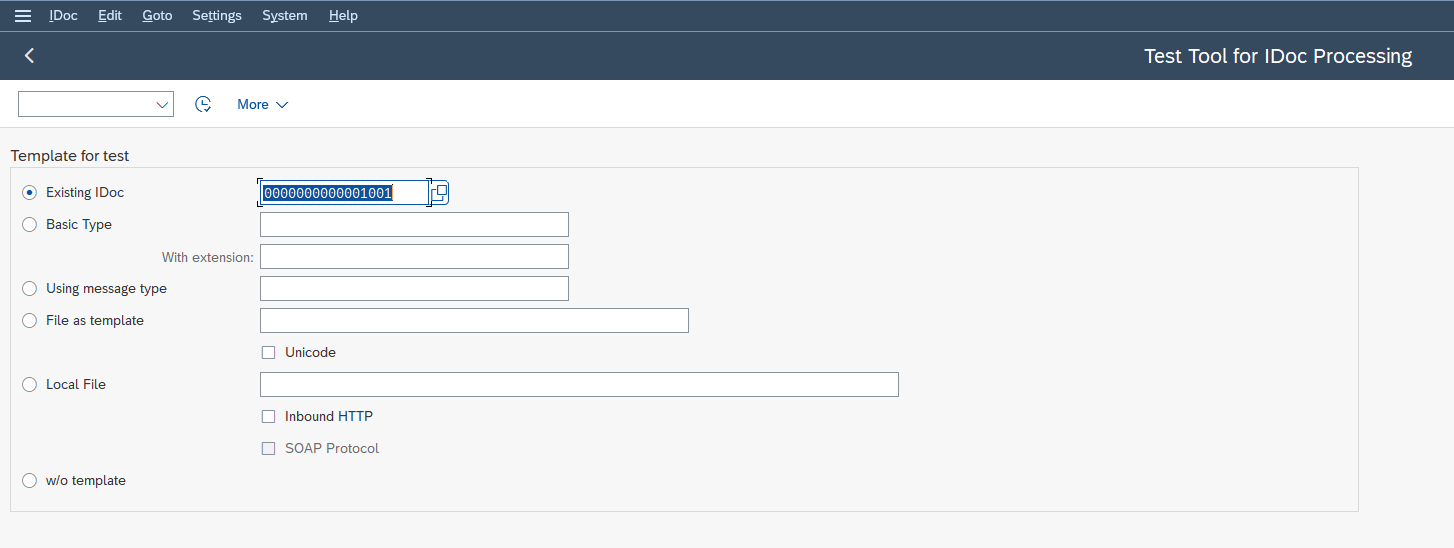
WE19 is the IDoc interface test tool: it serves to replay or simulate the processing of an IDoc, ideally starting from an existing IDoc taken as a template. It’s the careful functional consultant’s verification instrument.
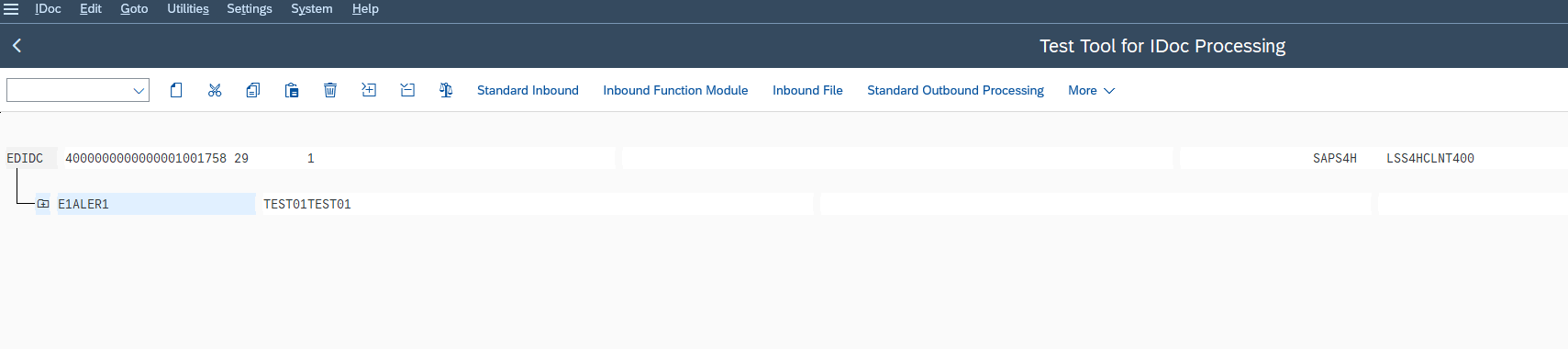
The typical scenario: you have an inbound IDoc in error 51, you’ve fixed the target master data (created the missing customer, for example), and you want to verify that processing now goes through. WE19 lets you restart from that IDoc, optionally adjust a piece of data in a segment, then relaunch inbound processing to observe the result.
The major benefit is control: you work from a real case, you immediately see whether the IDoc moves to 53 or falls back to 51, and you understand the effect of your fix before reprocessing in bulk. Caution still applies depending on the environment: test preferably in a non-production system, and keep in mind that replaying an inbound IDoc can genuinely create the application document. WE19 is not a harmless sandbox: it’s a tool for controlled replay.
Reprocessing IDocs in Error with BD87
BD87 is the IDoc reprocessing transaction: it lists IDocs by status and lets you relaunch those in error, one at a time or in bulk. It’s the production tool once the cause is fixed.
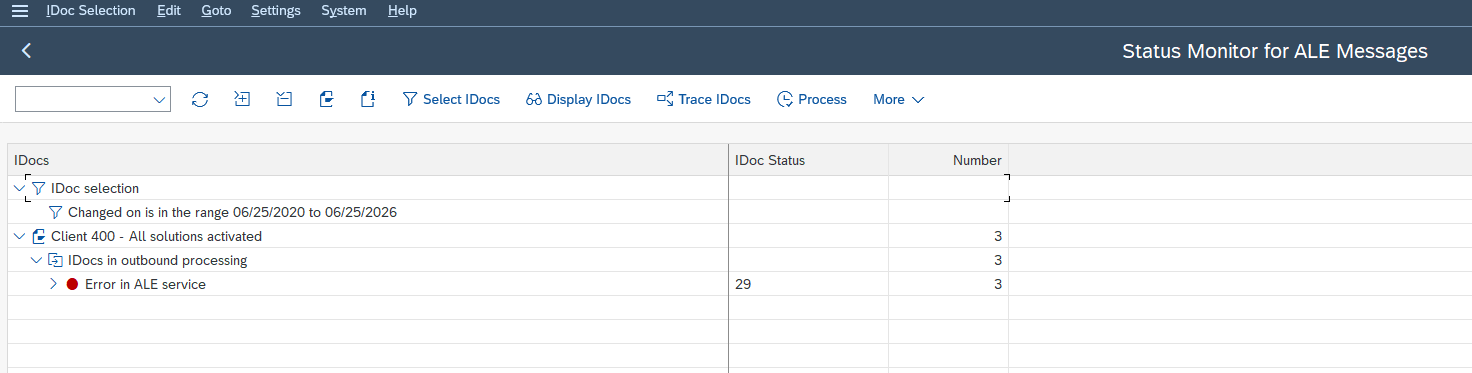
The right sequence is always the same. First, you diagnose and fix the cause (using WE02 to read, optionally WE19 to validate your fix on one case). Only then do you go through BD87 to relaunch the batch of affected IDocs. BD87 presents the IDocs grouped by status; you select those to reprocess and launch the run.
Relaunching in bulk without having fixed the cause only reproduces the same errors. If a hundred IDocs are in 51 for the same reason (incomplete master data), fix that master data first, verify on one case with WE19, then reprocess the whole batch. On large recurring volumes, this reprocessing is often automated via a scheduled background job, but the principle doesn’t change: diagnose, fix, then relaunch.
Checking Partner Profiles (WE20) and Documentation (WE60)
Two transactions round out the diagnostic toolbox, without ever crossing into development.
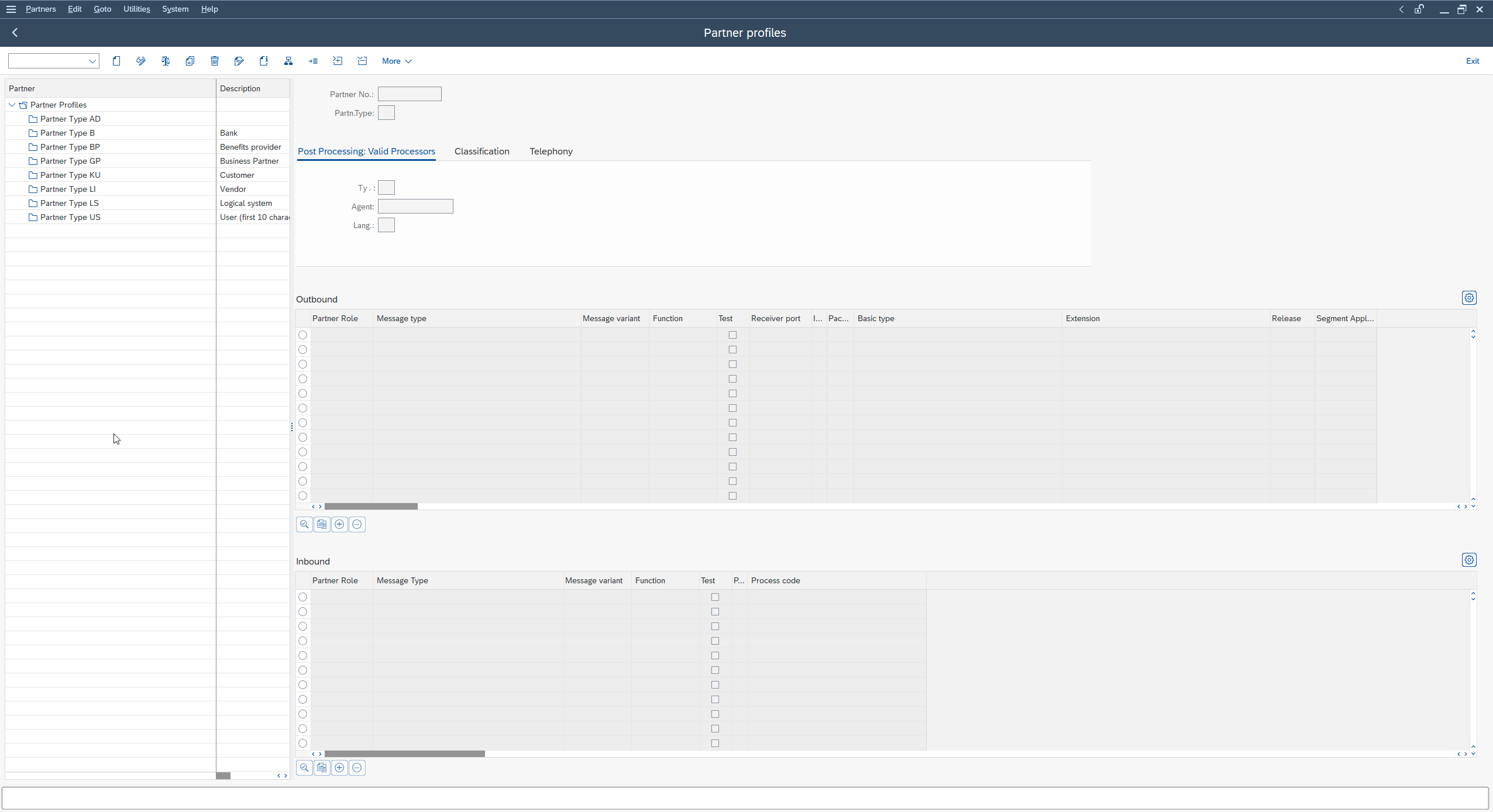
WE20, the partner profiles. A partner is the identity of the sender or receiver of an IDoc (a customer, a vendor, a logical system). The partner profile defines, for each message type, how the IDoc must be processed and through which port it travels. When an entire flow doesn’t leave or doesn’t arrive, and it isn’t a data error on an isolated IDoc, the partner profile is one of the first places to inspect: a message type not declared for a partner, and nothing flows anymore for that exchange.
WE60, the basic type documentation. WE60 generates the documentation of a basic type: the list of its segments and fields. It’s valuable when you need to understand where a piece of data should sit, or explain the structure of an IDoc to someone without guessing. For a functional consultant, it’s the map that turns an obscure IDoc into a readable structure.
On the cross-cutting prerequisites, keep two very concrete things in mind. First, access to these WE* transactions (WE02, WE05, WE19, BD87, WE20, WE60) depends on your authorizations: if a transaction is denied, it’s not a bug, it’s an access right to request from your administration. Second, the notion of partner and port is structuring: an IDoc always travels from one partner to another, via a port. Understanding this trio (sending partner, receiving partner, port) saves you from hunting for a data error when the problem is a misconfigured partner.
To get to the bottom of a specific concept, the official SAP documentation on the IDoc and ALE interface remains the reference for checking a status, a message type or the behavior of a partner profile in your version.
Frequently Asked Questions
How do you read an SAP IDoc?
Use transaction WE02 (or WE05 for a list view). Open the IDoc, then read it in order: the control header (direction, message type, partners, port), the status records (what happened), then the data arranged in the segments (the business content). Three layers, always the same.
What does IDoc status 51 mean?
Status 51 concerns an inbound IDoc and means “error”: the application document could not be created in SAP. The cause is almost always invalid data or a business check that blocks (unknown customer, non-existent material, unrecognized unit). The message attached to the status, readable in WE02, specifies the exact nature of the block.
What is the difference between IDoc status 51 and 53?
Both concern an inbound IDoc. Status 51 means processing failed and the application document doesn’t exist. Status 53 means success: the application document was successfully created in SAP. In short, 51 = to diagnose, 53 = successfully processed.
Which transaction displays an IDoc?
WE02 is the go-to transaction to display and list IDocs. WE05 offers a very similar list view. For the structure documentation (segments and fields of a basic type), use WE60. For partner profiles, WE20.
WE19 or BD87: what’s the difference?
WE19 is a test tool: it serves to replay or simulate the processing of an IDoc, often from an existing IDoc, to validate a fix on one specific case. BD87 is the production reprocessing tool: it relaunches IDocs in error, one at a time or in bulk. In practice: you diagnose and validate a fix with WE02 then WE19, and you reprocess the batch with BD87.
Do you need to know ABAP to diagnose an IDoc?
No. Reading an IDoc, interpreting its status, locating the faulty data in a segment and relaunching processing with BD87 are purely functional tasks. ABAP only comes in to understand the detail of a very specific application check, and even there, it’s joint work with a developer.
In Summary
Diagnosing an SAP IDoc comes down to a reading discipline: identify the direction, read the status, locate the faulty segment, fix the cause, then replay with WE19 and reprocess with BD87. None of these steps requires coding; they require method and the right vocabulary. The next time someone tells you “go check your IDocs,” you’ll know exactly where to lift the hood.
To practice, take an IDoc in error in your test system, open it in WE02 and run through the four steps of the analysis method on a real case. It’s by reading status 51s until you understand them at a glance that you earn this self-sufficiency.
Keep reading
How to Read MD04 in SAP: Stock/Requirements List Explained
How to Read MD04 in SAP: The Stock/Requirements List Explained Available quantity goes negative on October 19. The planner calls the supplier in a hurry, and the order she pulls...
 Michael A.
SAP Account Determination: How OBYC Picks the G/L Account
SAP Account Determination (OBYC): From Goods Movement to G/L Posting You post a goods receipt in MIGO. You enter a material, a quantity, a purchase order. At no point does...
Michael A.
SAP Document Flow: Trace an Invoice Back to Its Order (VBFA)
SAP Document Flow: Trace an Invoice Back to Its Order (VBFA) It is 9:10 in the morning. A customer is disputing an invoice and wants your answer before noon. You...
Michael A.
SAP Object Locked by Another User: What It Means (SM12)
SAP Object Locked by Another User: What It Means (SM12) An object locked by another SAP user and an object you have no rights on feel exactly the same: everything...
Michael A.