Your workstation is ready, SAP GUI is installed, and the administrator has sent you three cryptic pieces of information: an IP address, a System ID, an instance number. Now what? Where does the connection actually happen, and what do you do with these values? The answer lives in a small tool you will open every morning: SAP Logon.
This guide starts from the very beginning: what SAP Logon is, why your screen lists several systems, how to add an entry with the values you received, what each field on the logon screen means, and how to make the interface easier on the eyes by switching themes. With screenshots, on an S/4HANA system.
- SAP Logon is the launcher installed with SAP GUI: it lists your systems and opens the connection. It is not SAP itself.
- An SAP landscape usually has 3 environments: development (the sandbox), quality assurance (integration tests) and production (daily business).
- To add a system: click New Item, then fill in Description, Application Server (the IP address), Instance Number and System ID provided by the administrator.
- The logon screen asks for Client, User, Password and Logon Language; the New password button changes your password before you enter the system.
- The interface theme is set in Options: Blue Crystal with the “Accept SAP Fiori visual theme” box checked gives the most modern rendering in the GUI.
What exactly is SAP Logon?
SAP Logon is the program installed on your workstation along with SAP GUI, SAP’s desktop client. Its role is simple: keep the list of your systems and launch the connection to the one you pick. Double-click an entry, SAP GUI opens, the logon screen appears. Nothing more, but everything goes through it.
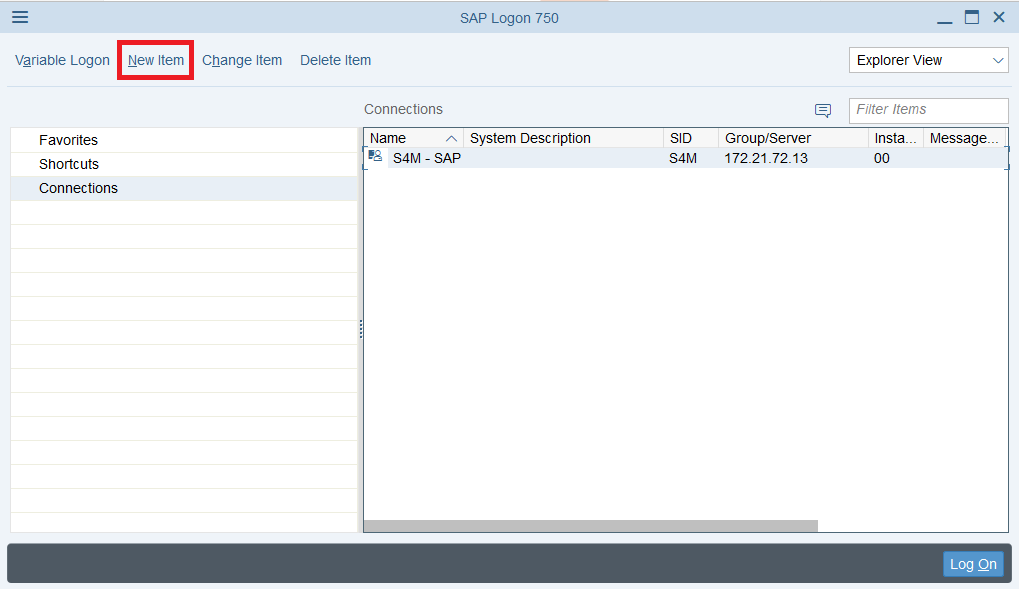
You will still hear people say “logon pad”: that is the old name of this window, and it stuck in project vocabulary. Logon pad, SAP Logon, same thing. Not to be confused with SAP GUI, which is the full graphical client: SAP Logon is only its front door.
Development, quality assurance, production: the three environments of your SAP landscape
First surprise for a newcomer: the list often contains several entries for what looks like the same SAP. That is normal. A company never works on a single system, but on a landscape, typically three environments connected to each other.
The development environment is the sandbox. That is where customizing, ABAP development and unit tests happen. As a rule, only consultants have access to it. If the topic intrigues you, the ABAP debugger guide shows what goes on there on the technical side.
The quality assurance environment is for testing. The company’s key users validate processes there: integration tests, cross-module analysis, checking that the upcoming change breaks nothing. It is the environment where you are allowed to make mistakes, with data close to the real thing.
Production, finally, is the system everyone uses every day. Orders, deliveries, accounting postings: everything happens for real there. Before entering anything, always check which Logon entry you just connected to. That reflex is worth gold.
Adding a system in SAP Logon: step by step
You received an IP address, a System ID, sometimes an instance number and a SAProuter String from the administrator. Here is where to enter them.
-
1Open the wizard
In SAP Logon, click the New Item button. The Create New System Entry window opens.
-
2Choose User Specified System
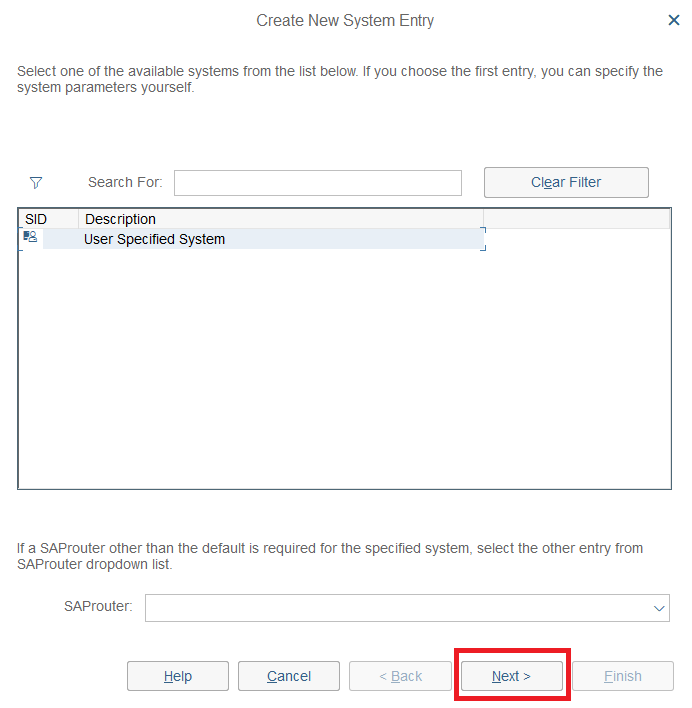
Select the User Specified System entry and click Next: you will enter the parameters yourself.
-
3Fill in the connection parameters
Description (the name shown in your list), Application Server (the IP address you received), Instance Number (00 if nothing was specified), System ID, and SAProuter String only if the administrator gave you one.
-
4Finish and test
Confirm with Finish: the entry appears in the list. Double-click it to open the logon screen.
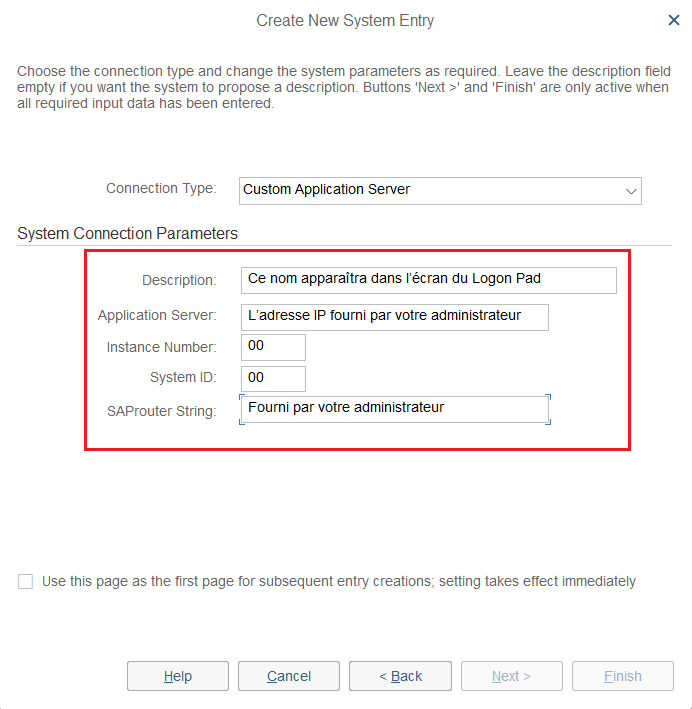
One detail that saves you some back and forth: the Connection Type stays on Custom Application Server for a direct connection. And if the SAProuter String field puzzles you, leave it empty. It is only needed when the connection goes through an SAP router, typically to reach the system from outside the network.
The logon screen decoded, field by field
Double-click your new entry: SAP GUI opens on the logon screen. Four fields, and each one matters.
| Field | What it expects | Good to know |
|---|---|---|
| Client | The client number, the data space you work in | Provided with your access (100 in our screenshot); a single system can host several clients |
| User | Your SAP user ID | Created by the administrator, with the matching authorizations |
| Password | Your password | Initial at first logon: the system will ask you to change it |
| Logon Language | The interface language (FR, EN…) | It drives the labels of screens and transactions for the session |
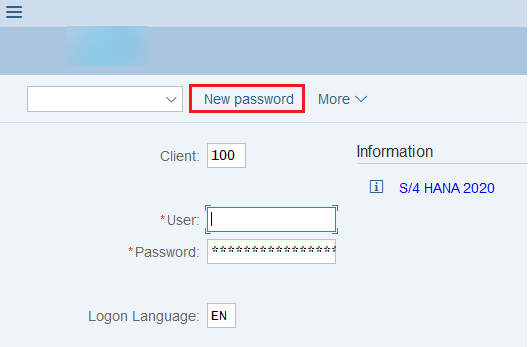
The New password button, at the top of the screen, lets you change your password before even entering the system. Handy on day one: you type the initial password you received, then your own. As for the user and its rights, they do not fall from the sky: the article on SAP roles and authorizations explains who grants them and how they work.
Changing the SAP GUI theme in thirty seconds
SAP GUI knows how to change its skin. The colors, the relief of the buttons, the density of the display: all of that depends on the chosen theme, and some make the interface much more readable. The setting lives in the More menu, then SAP GUI settings and actions, then Options.
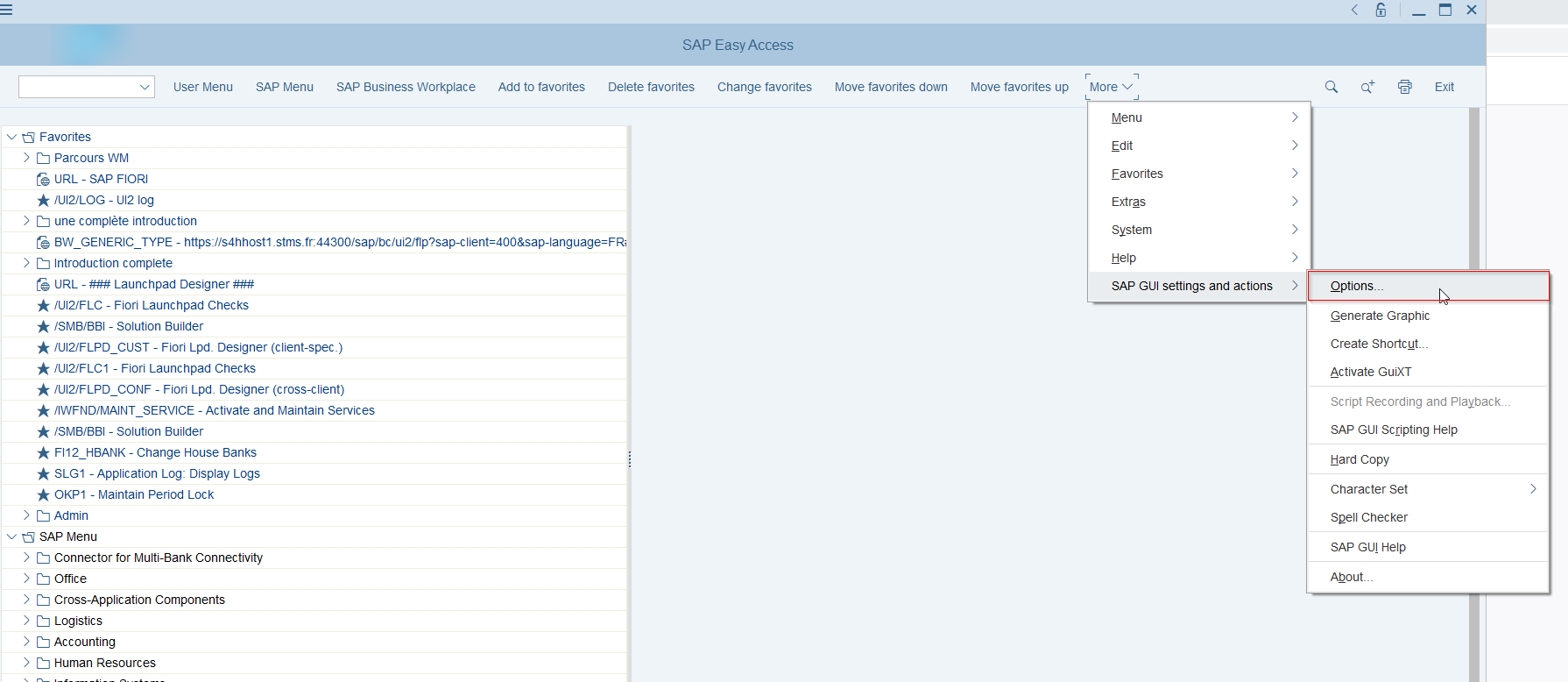
In the Options window, Visual Design section, the Theme dropdown offers Blue Crystal, Corbu, SAP Signature, Enjoy and Classic, among others. Pick the one that suits you, confirm with OK, then restart SAP Logon: themes only apply after a restart.
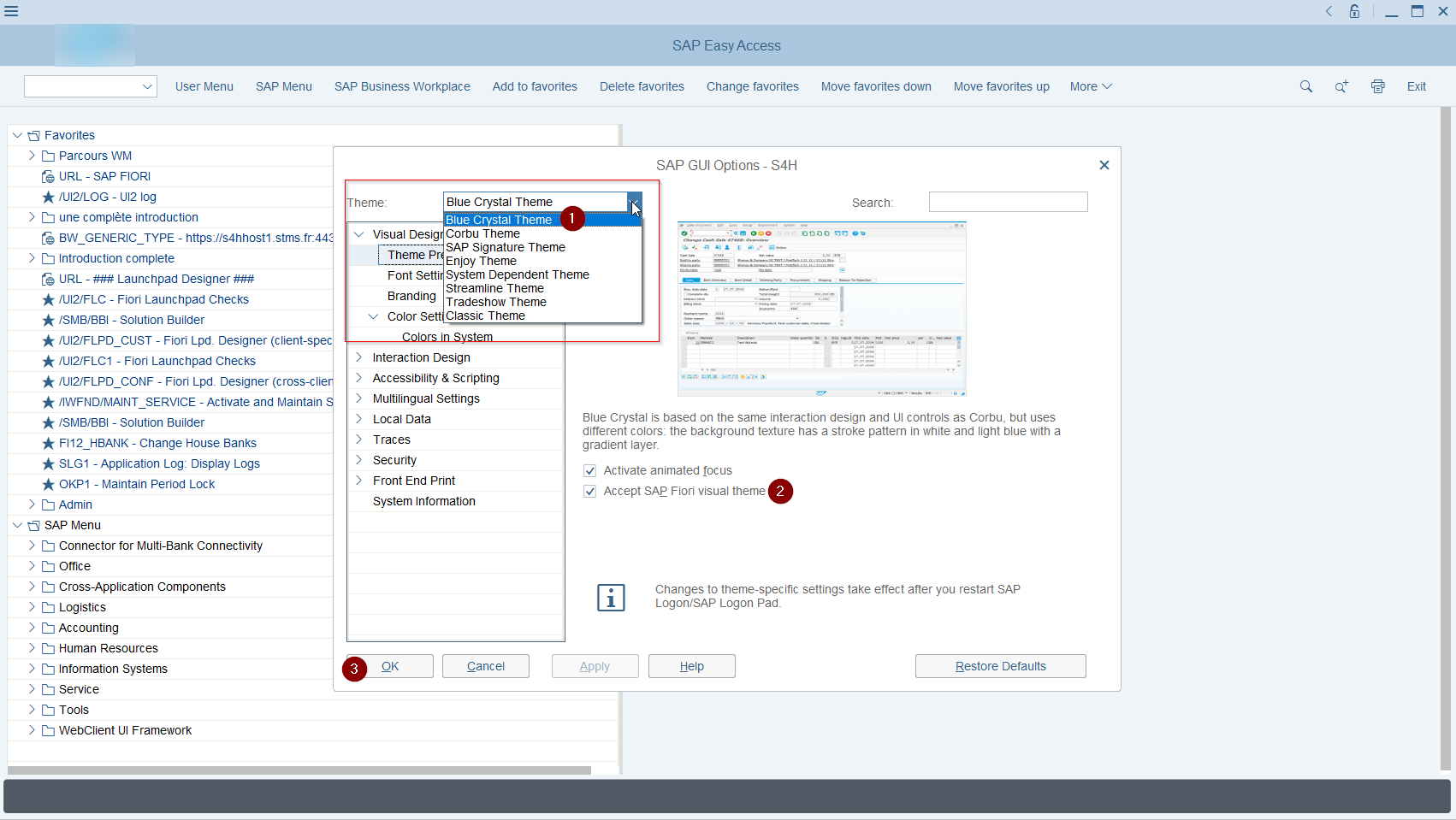
My reference setup, the one you will see in most screenshots on this blog: the Blue Crystal theme with the “Accept SAP Fiori visual theme” box checked. It is the rendering closest to the Fiori look while staying in the desktop client. If you follow tutorials, using the same theme makes screen-by-screen comparison much more comfortable.
SAP Logon or Fiori launchpad: two doors into SAP
SAP Logon is no longer the only way into SAP. On S/4HANA, a growing share of the work goes through the Fiori launchpad: a tile-based home page, in the browser, with nothing to install on the workstation. The web-side procedure is detailed in the guide to logging in to the SAP Fiori launchpad.
Both doors coexist on most projects. The launchpad covers everyday scenarios with modern applications, accessible from any browser; the free official course Learning the Basics of SAP Fiori gives a good overview. SAP GUI remains the tool for classic transactions, customizing and expert screens. A key user often moves between the two in the same day: better to know how to set up both.
Ready to log on
Let’s recap the ideal first day: SAP Logon installed, an entry created with the administrator’s values, a connection to the quality assurance environment to practice, a personal password set via New password, and a readable theme. Five minutes of setup, months of comfort.
The logical next step: identify which entry in your list matches which environment, and build the reflex of checking it before every entry. It is the first habit we teach new users, and the one that prevents the real blunders in production.
FAQ: your questions about SAP Logon
Are SAP Logon and SAP GUI the same thing?
No. SAP GUI is the full graphical client installed on your workstation; SAP Logon is the launcher that comes with it, keeps the list of your systems and starts the connection. It is also called the “logon pad”, its old name.
Where do I find the IP address, the System ID and the instance number?
From your SAP administrator or the Basis team: they are the ones who provide these values. If no instance number is specified, leave 00. The SAProuter String stays empty unless told otherwise.
What is the Client field on the logon screen for?
The client is the data space you work in, identified by a number. A single SAP system can host several of them, for example to keep sets of test data separate. The number to use is provided with your access.
When do I need to enter a SAProuter String?
Only when the connection goes through an SAP router, for example to reach a system hosted outside your network. In that case, the exact string is given to you by the administrator. Otherwise, the field stays empty.
Can I connect to S/4HANA with SAP Logon?
Yes. S/4HANA remains accessible in SAP GUI via SAP Logon, as the screenshot in this article shows (an S/4HANA 2020 system). In parallel, the Fiori launchpad offers tile-based web access: both doors coexist on most projects.
How do I change the logon language in SAP?
Enter the language code in the Logon Language field of the logon screen (FR, EN…). The session then opens with the labels in that language, provided it is installed on the system.
Keep reading
SAP pMRP Explained: Predictive MRP in S/4HANA (and How It Differs from LTP)
SAP pMRP is neither one more MRP run nor a quick facelift of LTP. Predictive Material and Resource Planning is a simulation: nothing you do in it touches your operational...
 Pierre B.
SAP SD Pricing Determination: The Condition Technique
Sooner or later, on a project, a user shows you a sales order and asks why the displayed price is not the one they expected. You open the line, you...
 Michael A.
SAP ECC vs S/4HANA: the key differences for your SAP career
If you look into SAP for your career, two acronyms keep coming up: ECC and S/4HANA. One is the older generation of SAP's ERP, the other is the current version....
Michael A.
SAP Consultant Salary: How Much Do You Earn (Junior to Senior)?
Before moving into SAP, almost everyone asks the same question, rarely out loud: does it really pay? The short answer is yes, and rather well. In the United States, an...
Michael A.