SAP Selection Variant: Save, Reuse and Schedule the Execution of a Report
Every Monday morning, it is the same ritual: you open your report, you retype the same company code, the same plant, the same date range, the three filter fields you know by heart. Five minutes lost, and over time the risk of getting one character wrong. The SAP selection variant exists precisely to put a stop to that. It is a native function, available on almost every report selection screen, that memorizes your criteria once and for all and hands them back to you at a single click. And it has a second, lesser-known use: it is what makes it possible to run a report automatically in the background.
Good news: there is nothing to develop and nothing to ask the technical team for. You already know how to run your report; you are just two or three clicks away from never re-entering your filters again.
A selection variant memorizes a report’s criteria under a name, so you can recall them in one click instead of retyping everything. You create it from the selection screen (SE38 / SA38), you switch its dates to relative so they update by themselves, and it is what a scheduled job consumes in SM36 (then checked in SM37). One of the rare SAP moves that pays off from the second run onward.
What is an SAP selection variant?
An SAP selection variant is a set of criteria saved on a report’s selection screen, which you then recall in one click instead of retyping everything. In practice: you fill in the screen fields once (company code, period, plant, status, and so on), you save the whole thing under a name, and that name becomes reusable on every run. SAP is not reinventing anything for you; it simply stores your values in a labelled drawer that you reopen whenever you want.
A variant is the selection screen frozen under a name. Nothing more, nothing less.
Selection variant, program variant, execution variant: one and the same object
You will come across three names, and they all refer to the same thing. “Selection variant”, “program variant” and “execution variant” are synonyms: a report in SAP is a program, its entry screen is the selection screen, and the variant is what you launch at execution time. Three points of view, one object. If a colleague talks about a “program variant” and you about a “selection variant”, you are talking about the same thing.
The selection variant memorizes what you are looking for (the criteria before execution). The layout variant of an ALV list memorizes how the result is displayed (columns, sorts, subtotals after execution). Two different mechanisms, two different buttons, not to be mixed up.
What it does for a key user: the recurring report
The benefit shows up most on the reports you run over and over with the same filters. A stock report by plant, a list of open orders, a tracking of movements over a period: as soon as a report comes back in your week, it deserves its own variant. You save the data-entry time, but above all you remove the typo on a criterion, the kind of slip that skews a result without warning.
There is a third benefit, and it is the most strategic one: a variant can be shared. If three people in your department run the same report with the same criteria, a shared variant guarantees that everyone is looking at exactly the same data. No more “on my screen the figure is not the same as on yours”.
Create and save a variant in SE38 / SA38
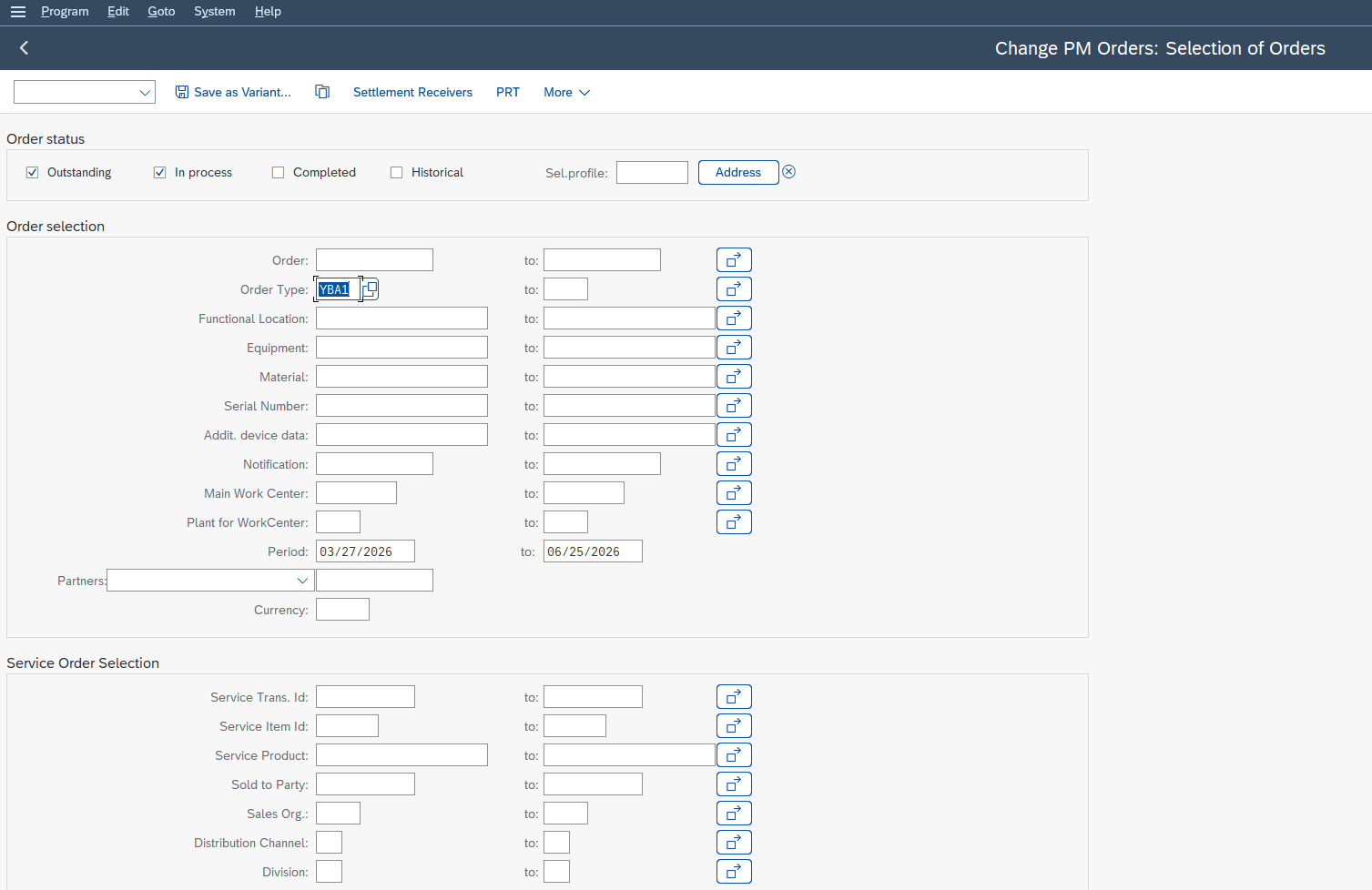
To create a variant, run the report, enter your criteria, then use the “Save as variant” function on the selection screen. The action is the same whatever the report, and that is what makes it easy to memorize once and for all.
-
1Run the report
Open the report by its business transaction code, or through a generic transaction:
SE38(the ABAP editor, which runs a program via the execute button) orSA38(which is only used to execute a program without going through the editor). For a key user who knows the technical name of the report,SA38is often the simplest way in. -
2Enter your criteria
On the selection screen, fill in your fields as usual: single values, ranges (from… to…), or multiple selections. Everything you enter at this moment will be memorized by the variant. Take the time to set the criteria you will want to find unchanged next time.
-
3Save as variant
Go to the “Goto” menu then “Variants”, or use the “Save as variant” function directly (often reachable through the save button on the selection screen). SAP then asks you for a name (technical, no spaces) and a description (in plain language, the one others will see in the list).
-
4Set the attributes, then confirm
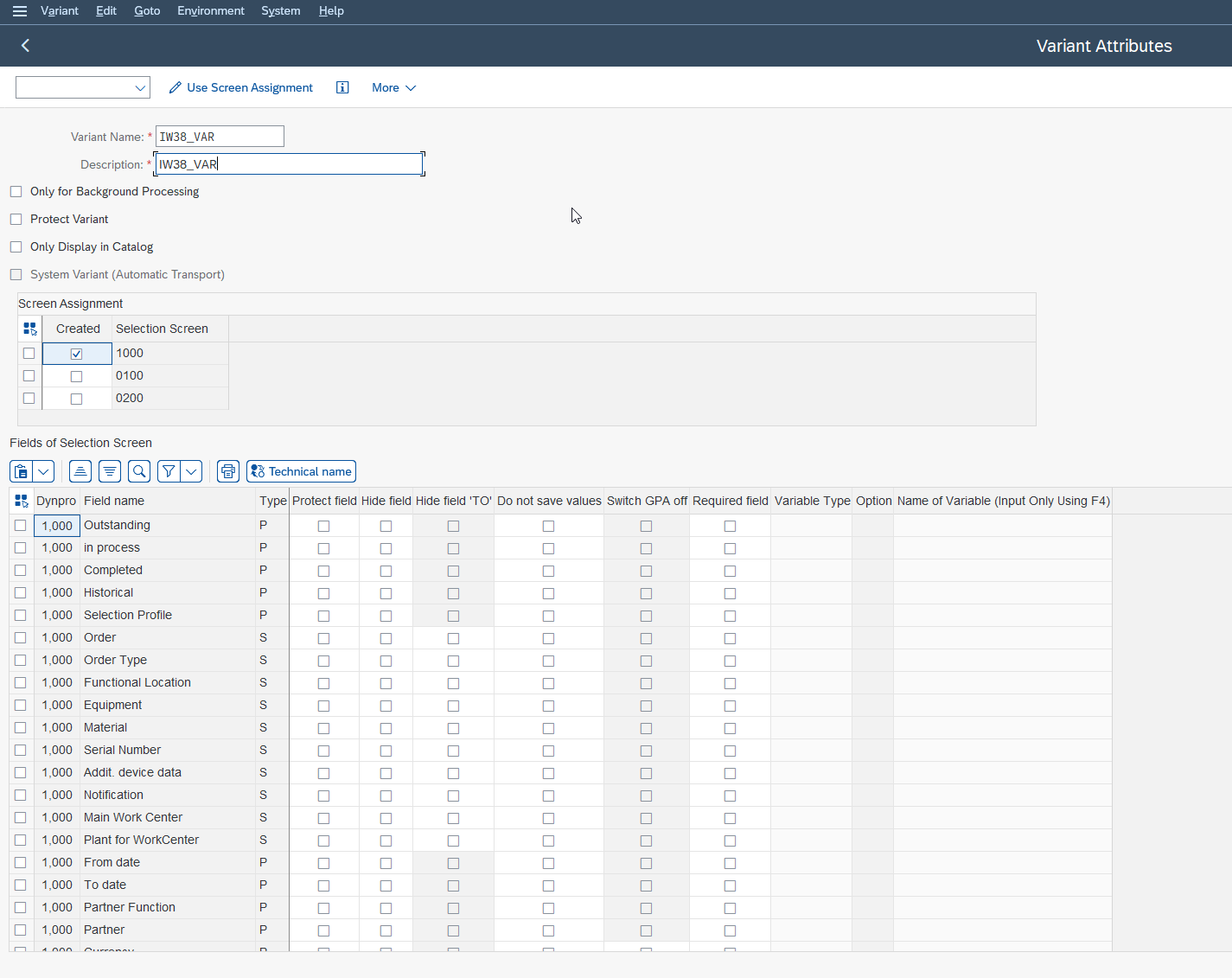
On the same screen, choose the useful attributes: “Protected” (the variant can only be changed by its creator) and “Hidden / not displayed” (it exists and works, but does not appear in the current selection list). Confirm: your variant is created and recallable in one click.
The variant attributes to know right from the start
Two attributes deserve your attention from the very first save:
- Protected: the variant can only be changed by its creator. Useful for a reference variant you do not want to be overwritten by mistake.
- Hidden / not displayed: the variant exists and works, but does not appear in the current selection list. Handy for purely technical variants meant for jobs, which you do not want cluttering the users’ list.
The SAP documentation on selection variants details each option of the standard program and the behavior of the attributes.
Naming best practices
A good variant name reads without having to open it. Avoid the “TEST1”, “VAR_MICHAEL”, “TRIAL” names that will mean nothing to anyone six months from now. Prefer a meaningful name that encodes the use: scope, frequency, business area. A few simple principles:
- put the scope in the name (the plant, the company code, the domain);
- indicate the frequency if it carries meaning (monthly, daily);
- stay consistent across colleagues: agree on a common prefix for the department’s shared variants.
A poorly named shared variant creates more confusion than it solves. Agreeing on a common prefix for the department at the start saves you back-and-forth later on.
Reuse an existing variant
To reuse a variant, run the report then recall the variant instead of re-entering your criteria: SAP instantly reloads all the memorized values. This is the moment when the time invested at creation pays you back.
Retrieve a variant at launch
On the selection screen, two paths. Either you click the “Get variant” button (the variant-load icon at the top of the screen), pick your variant from the list, and the screen fills in by itself. Or, if you go through SA38, you enter the variant name directly in the dedicated field before running it. In both cases, you check at a glance that the criteria are right, and you launch.
One useful reflex: before running it, take a look at the period. It is the criterion that “ages” the fastest in a variant, and we come back to it right after.
Change or delete a variant
A variant is not set in stone. To make it evolve, you recall the variant, adjust the criteria, then save again under the same name (overwriting the previous version). To manage all the variants of a program, the “Goto” menu then “Variants” opens the maintenance screen where you can rename, delete or change the attributes.
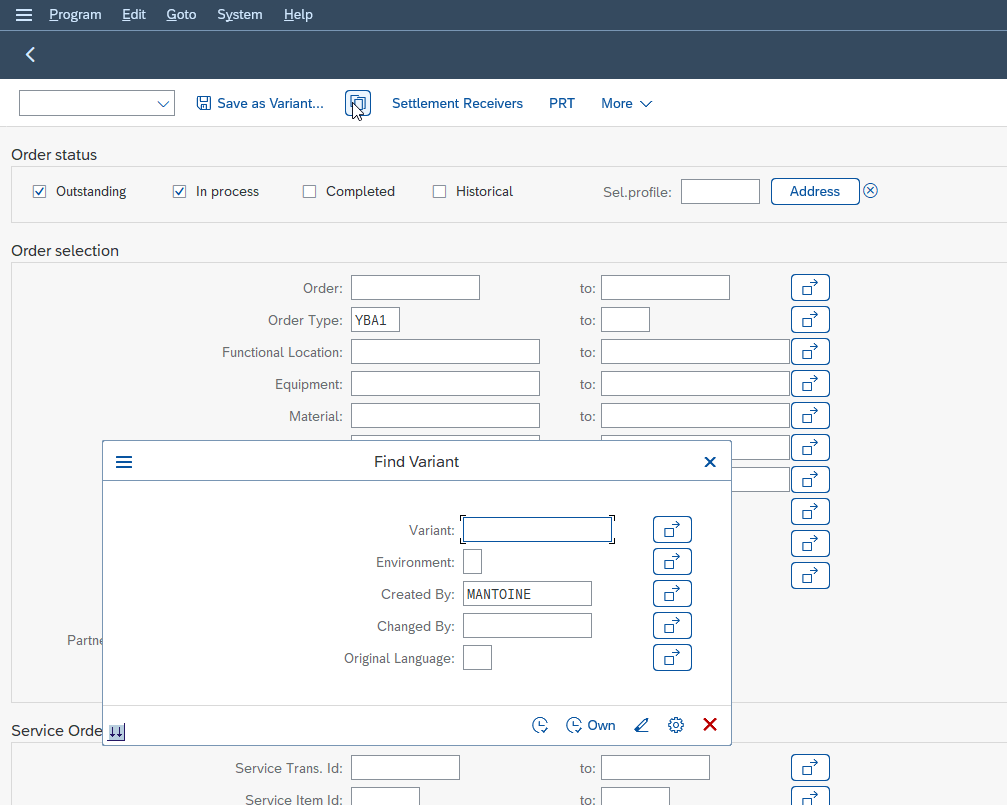
A protected variant will only let itself be changed by its creator: that is intended, and it is what secures your reference variants. If you inherit a variant from someone who has left the company, your SAP administrator will be able to unlock its maintenance.
Dynamic variables: dates that update by themselves
A variant can contain dynamic variables, that is, values automatically recalculated on every run, typically relative dates. Instead of freezing “06/01/2026”, you tell the variant “the first day of the current month”, and SAP works out the right date at each launch. This is the productivity lever that most tutorials forget, and it is often the one that changes everything.
The trap of the hard-coded date
Picture the scene: in June you create a “monthly stock” variant with the period from June 1 to June 30. As long as you run it in June, perfect. But in July, your variant stubbornly returns June’s figures, because the date is frozen in the variant. The report runs, returns no error, and gives you stale data without flinching. It is one of the most insidious bugs in a key user’s daily life: the report does not crash, it serves you a wrong result that looks perfectly normal.
This trap becomes downright dangerous when the variant feeds an automatic job: a report that sends itself out every month with the same old values, no error, no alert. Any variant meant to be re-run over time must use a relative date variable, never a hard-coded date.
Hard-coded date or relative date: what actually changes
The fix comes down to one option. On the variant save screen, each field of the selection screen has an attribute. For a date field, you can choose “dynamic date calculation variable” and select a formula from the SAP standard: first day of the current month, today’s date, last day of the previous month, and many more. The date is then no longer entered “hard” but calculated at execution.
Hard-coded date
- The period stays frozen on the values from the creation day.
- In July, the “monthly stock” variant still returns June.
- No error shown: the false result goes unnoticed.
- You have to reopen and fix the variant every period.
- In a job, the same old month is returned indefinitely.
Relative date (dynamic variable)
- The date is recalculated automatically on every run.
- Run in July, it takes July; in August, it takes August.
- The result stays correct without any rework.
- You never come back to the date criterion again.
- A job that relies on it stays reliable forever.
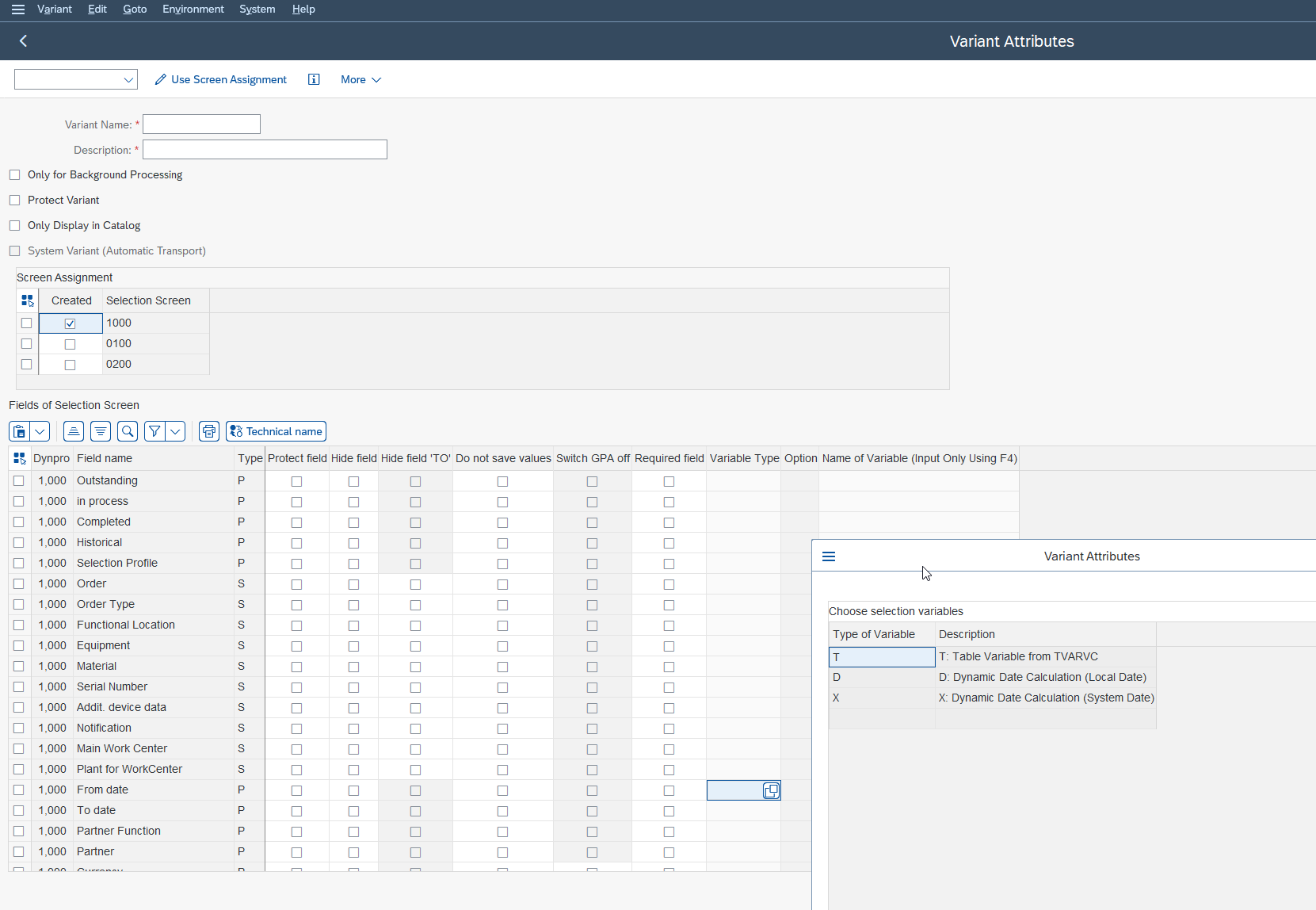
For any periodic report, this option is a matter of reliability, not comfort. Your “monthly stock” variant becomes autonomous, and a job that relies on it stays correct with no intervention.
From the variant to the scheduled job (SM36 / SM37)
Scheduling the automatic background execution of a report assumes you first have a selection variant: it is what tells the job with which criteria to run the report. Without a variant, the job would not know what to filter. The variant is therefore the prerequisite of the job, not an option.
Why a job needs a variant: the missing link
A job runs with no one in front of the screen. It therefore cannot ask you interactively “which company code? which period?”. All those answers, it reads them from the variant you associate with it. This is exactly the link that most online content leaves out: they explain the variant on one side, the job on the other, without saying that one does not go without the other.
If you want the full lifecycle of a job, from creation to monitoring, we covered it in our dedicated guide on scheduling an SAP background job with SM36 and SM37. The present article covers the upstream building block: the variant that this job will consume.
Set the variant in SM36
In SM36 (job definition), you create the job, then you add a step of type “ABAP program”. At this step, two fields matter: the program name (your report) and the variant name. This is where everything links up: you designate the variant created earlier, and the job will know exactly which criteria to apply on every run.
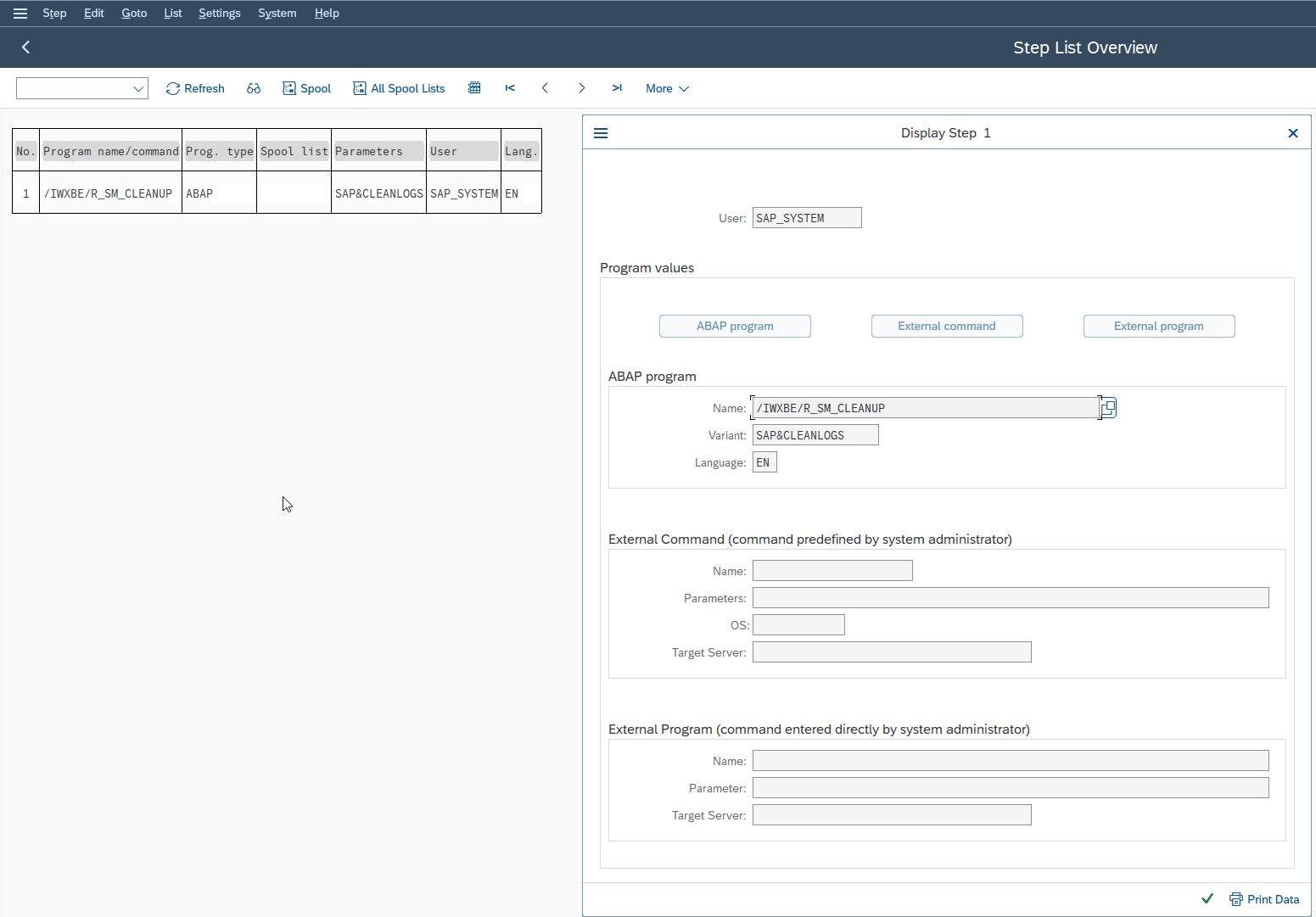
This is precisely where dynamic variables take on their full meaning. A monthly job pointing to a hard-coded-date variant would forever return the same month. The same job pointing to a relative-date variant (“current month”) produces the right result on every pass, with no intervention at all. The quality of your variant determines the reliability of your job.
Check the execution in SM37
After scheduling, SM37 (job monitoring) shows you the state of your jobs: scheduled, running, finished, or failed. There you find the execution logs and, above all, the variant actually used. When in doubt about a result, this is the first reflex: open the job in SM37 and check which variant it really consumed. Nine times out of ten, a job that “returns wrong values” points to a frozen variant that someone forgot to switch to a relative date.
Running a program, whether through SA38 interactively or as a background job, requires the report-execution authorizations (the authorization object that controls program launches). If a report or a job is refused, it is not the variant that is at fault, it is your authorization profile: check with your SAP administrator.
Common mistakes and points of attention
A few traps come up often enough to deserve a short list you can keep within reach:
- The hard-coded date in a recurring variant. The all-time classic. Any variant meant to be re-run over time must use a relative date variable, never a hard-coded date.
- Confusing the selection variant with the ALV layout variant. One memorizes the criteria before execution, the other the formatting of the result. Two distinct objects.
- An unreadable variant name. “TEST2” does not survive six months or a job handover. Name it for the colleague who will inherit the variant.
- Forgetting the “protected” attribute on a reference variant. Without protection, anyone can overwrite it, and your job starts running on criteria changed without your knowledge.
- Looking at the variant when the problem is an authorization. A refused report or job is a matter of the authorization profile, not the variant.
None of these points is complicated. They just cost a lot when you discover them in production, on a figure already sent out.
FAQ
What is a selection variant in SAP and how do I save it?
A selection variant is a set of criteria saved on a report’s selection screen. You enter your values once, you use “Save as variant”, you give it a name and a description, and you then recall it in one click on every run instead of retyping everything.
How can I avoid re-entering the same criteria on every SAP report?
By creating a variant for each report you run on a recurring basis. Once the variant is saved, you retrieve it on the selection screen (the get-variant button) or by entering its name in SA38, and all your criteria reload automatically.
What is the difference between an SAP selection, program and execution variant?
None: they are three names for the same object. A report is a program, its entry screen is the selection screen, and the variant is what you launch at execution. Be careful, though, not to confuse it with the layout variant of an ALV list, which handles the display of the result, not the criteria.
How do I make the date in my SAP variant update by itself?
By replacing the hard-coded date with a dynamic relative-date variable when you save the variant. You choose a standard formula (first day of the current month, today’s date…) and SAP recalculates the date on every run. It is essential for any variant re-run over time or used by a job.
How do I schedule the automatic execution of an SAP report with my criteria?
You first create a selection variant with your criteria, ideally with relative dates. Then in SM36 you define a job with an “ABAP program” step, filling in the report name and the name of your variant. The job will apply these criteria on every run. You then track its progress in SM37.
Why is my SAP job using an old date or wrong values?
Almost always because the variant associated with the job contains a hard-coded date instead of a relative date. The job then returns the same period on every pass. Open the job in SM37 to identify the variant used, then switch that variant back to a dynamic date variable.
In summary
The selection variant is the small move that separates the key user who retypes their filters every morning from the one who launches their reports in one click and sleeps soundly on their automatic jobs. The next time you open your weekly report, take the two minutes to create the variant. And if you want to go one step further and fully automate the execution, it is through scheduling a background job that it happens.
Keep reading
How to Read MD04 in SAP: Stock/Requirements List Explained
How to Read MD04 in SAP: The Stock/Requirements List Explained Available quantity goes negative on October 19. The planner calls the supplier in a hurry, and the order she pulls...
 Michael A.
SAP Account Determination: How OBYC Picks the G/L Account
SAP Account Determination (OBYC): From Goods Movement to G/L Posting You post a goods receipt in MIGO. You enter a material, a quantity, a purchase order. At no point does...
Michael A.
SAP Document Flow: Trace an Invoice Back to Its Order (VBFA)
SAP Document Flow: Trace an Invoice Back to Its Order (VBFA) It is 9:10 in the morning. A customer is disputing an invoice and wants your answer before noon. You...
Michael A.
SAP Object Locked by Another User: What It Means (SM12)
SAP Object Locked by Another User: What It Means (SM12) An object locked by another SAP user and an object you have no rights on feel exactly the same: everything...
Michael A.