The hot work permit is signed, in duplicate, sitting in a binder in the maintenance office. Meanwhile, out in the workshop, the grinder is already running. Every industrial site knows this gap between paperwork and shop floor reality. SAP PM offers a more reliable safeguard: the permit, which locks the maintenance order until approval is granted.
This guide covers the feature end to end: what a permit is and where it applies, the three possible approval behaviors, assignment to a technical object or to an order, automation through classification with the CSEVPERMIT structure, and traceable approval. With screenshots throughout, from the Goto menu all the way to the screen that tells you who approved, and when.
- An SAP PM permit is a control and approval step inserted into maintenance order processing: hot work permit, welding permit, tank entry, inspection certificate…
- The check happens at 2 points in time: order release (REL) or technical completion (TECO).
- 3 possible behaviors: a simple warning, a hard block until approval, or no approval required.
- Assignment to a technical object (equipment, functional location: the permit then follows every order) or to a specific order, manually or automatically through classification (CSEVPERMIT structure).
- Approval is traceable (who, on which date, at what time) and can be restricted through authorization object I_SOGEN.
The SAP PM permit: your work permit, system edition
In SAP PM, a permit embodies a rule or condition that must be met before working on a technical object. The logic is simple: as long as the permit is not granted, the maintenance order cannot pass the controlled step. The paper binder becomes a system lock.
The use cases covered by the standard will sound familiar to any HSE manager: hot work permits, welding permits, tank entry, fire protection, explosive atmosphere zones, technical inspection certificates, activation approvals, environmental protection notifications, all the way to a forklift operator’s driving permit. If your process requires a signature before the work starts, it probably fits this framework.
The check can take place at two points in the order lifecycle: at release (REL status), meaning before the work begins, or at technical completion (TECO), to confirm everything is in order before closing the file. And permits can sit in three places: on an equipment (including serial numbers), on a functional location, or directly on the order. If these objects are new to you, the overview of the SAP PM module introduces them one by one.
Three approval indicators, three behaviors
All the flexibility of the mechanism lies in the approval indicator carried by each permit. It alone decides how strict the check will be.
| Behavior | What happens at the control point | Typical use |
|---|---|---|
| Warning | A warning message is displayed, the user can proceed; approval is still expected | Raise awareness without blocking the daily flow |
| Block | Error message: the order cannot be released (or technically completed) until the permit is approved | High-risk work, cost thresholds, regulatory obligations |
| No approval | The permit is carried by the order for information only, no approval required | Document a condition without weighing down the process |
Getting the setting right is a process question more than a technical one: a systematic block on routine jobs wears teams out, while a mere warning on a hot work permit protects no one. Calibrate permit by permit.
Assigning a permit to a technical object
First method, and the most structural one: place the permit on the technical object itself. Every time a maintenance order is created for that object, including by a preventive maintenance plan, the permit activates automatically at order level.
-
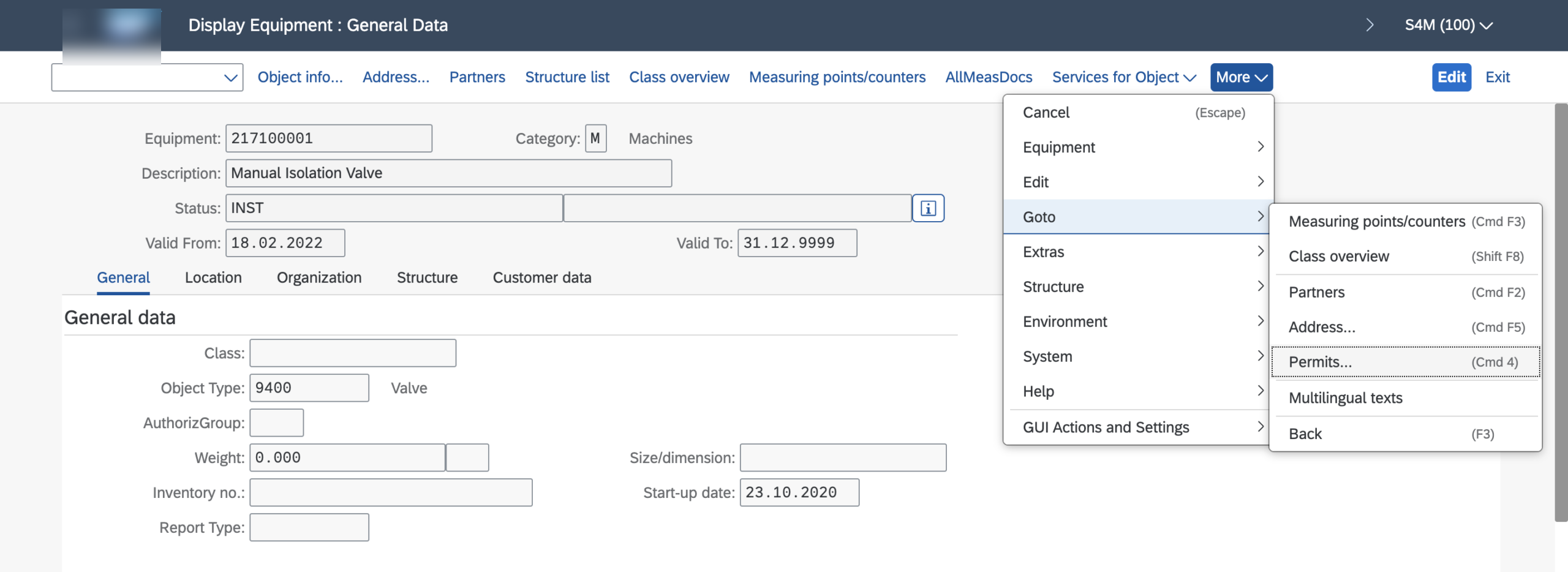
1Open the technical object
Display the master record of the equipment or functional location concerned.
-
2Goto menu, then Permits
In the menu bar (More on recent screens), choose Goto then Permits: the assignment window opens.
-
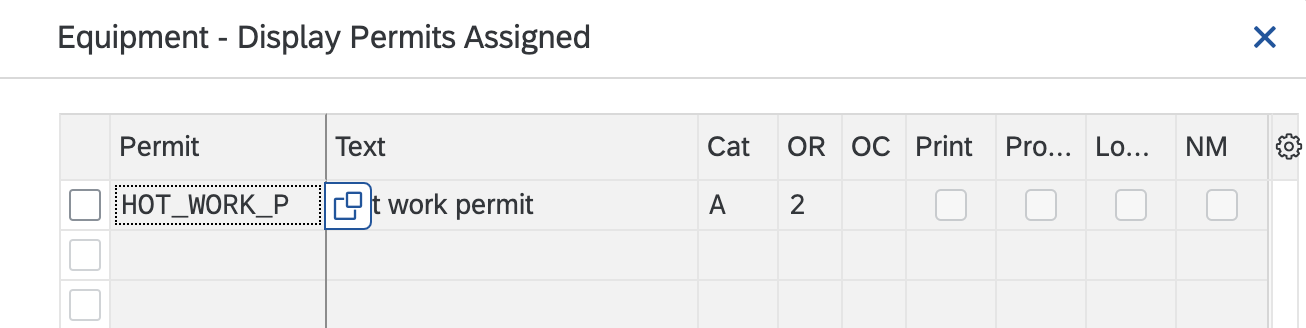
3Select one or more permits
The pop-up lists the preconfigured permits: select the ones that apply to this object, for example a hot work permit.
Assigning a permit directly to the order
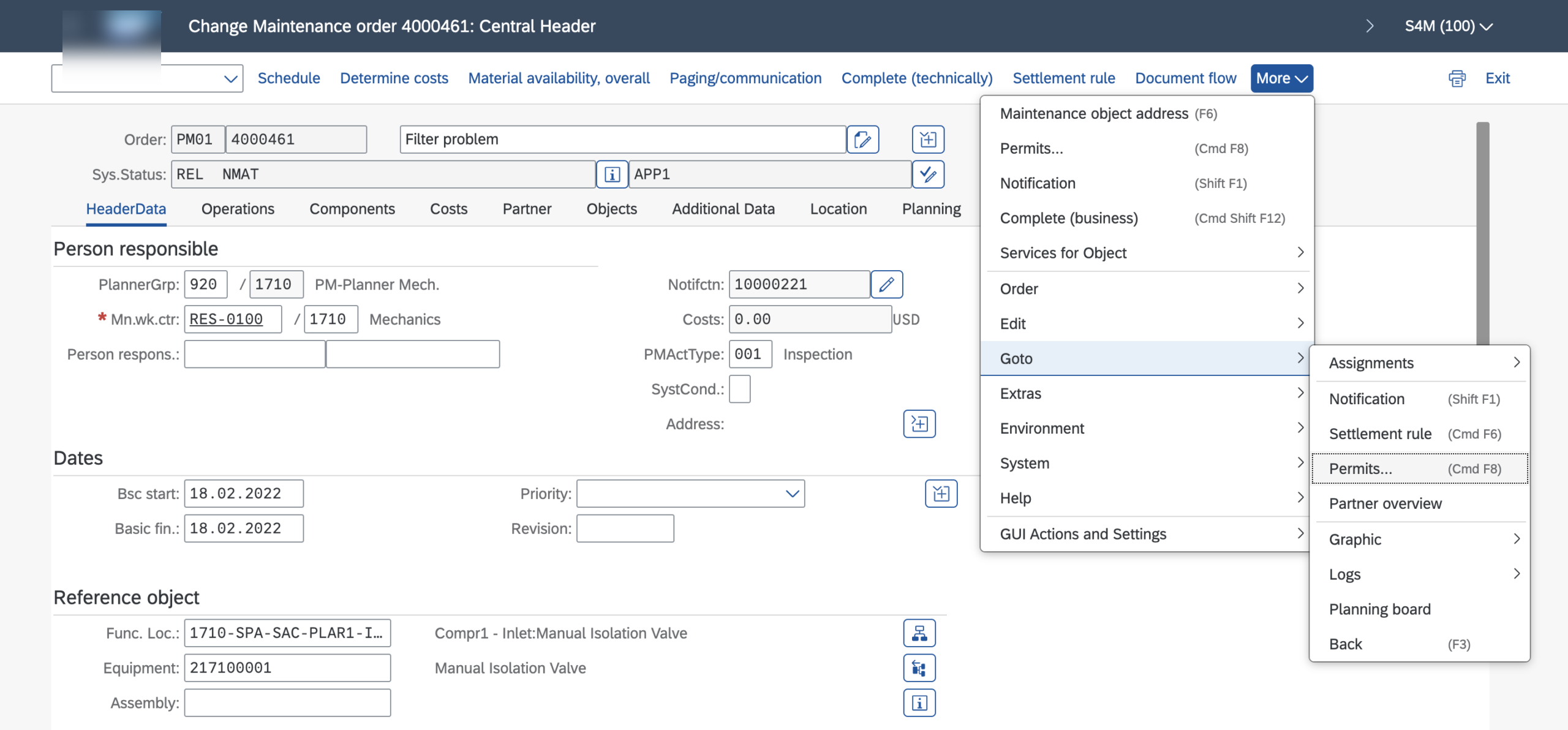
Second method: case-by-case assignment, on the maintenance order itself. Same path, Goto then Permits, this time from the order screen. The Assign and Issue Permits pop-up lets you add a one-off permit, for example for an unusual job on a piece of equipment that normally does not require one.

Manual assignment gets the job done, but it relies on the vigilance of whoever creates the order. To make the process more reliable, the standard offers something better: triggering permits automatically based on the content of the order.
Automatic assignment: classes, characteristics and CSEVPERMIT
This is the most powerful part of the feature. Relying on classification (classes and characteristics), the system compares the fields of the maintenance order against the classified permits, and activates the ones that match. The reference structure is called CSEVPERMIT: it includes fields such as Order Type, Maintenance Activity Type, Plant Section, as well as the order’s total planned and actual costs.
Four concrete scenarios you can transpose directly:
First case: the Maintenance Activity Type field is set to “major work”. The permit activates with a blocking message at release, approval required before anything starts. Second case: planned costs (Total Planned Costs) exceed EUR 5,000; block at release, the manager signs off on the budget before the workshop commits. Third case: actual costs (Total Actual Costs) exceed EUR 5,000; this time the block sits at technical completion, forcing a review before the order is closed. Fourth case: the order type is PM02; a simple warning message at release, the team is alerted without being blocked.
The two cost scenarios show that the permit is not just a safety tool: it is also a financial control. To understand where these planned and actual costs come from, the guide on maintenance cost management walks through the whole cost posting mechanics.
Approval and traceability: who approves, and when
A control is only worth something if the right person exercises it. SAP frames permit approval with a dedicated authorization: authorization object I_SOGEN determines which users can approve which permits. The hot work permit, for example, can only be approved by the HSE manager. How authorizations work is covered in detail in the article on SAP roles and authorizations.

Once the permit is approved, the screen answers the three questions an audit will ask: who approved, on which date, at what time. If an incident occurs, this time-stamped trail is worth gold, on the safety side as much as on the insurance side.
Permit categories and customizing: grouping, not control
Last piece of the configuration: permit categories. Every permit must be assigned to a category, but do not credit them with more power than they have: categories are only used to group and select permits. The control itself comes from the approval indicators covered above.
SPRO path:
Plant Maintenance and Customer Service → Master Data in Plant Maintenance and Customer Service → Basic Settings → Permits → Define Permit Categories
Every blocking permit adds an approval step to users’ daily routine. Applied everywhere, the mechanism becomes a burden that teams work around; applied in the right place, it is a lock that everyone respects. The field rule: one permit = one real requirement (regulatory, safety or financial).
To place permits in the broader landscape of asset management, the free official learning journey Discovering SAP Enterprise Asset Management is a good companion to this guide.
A simple lock, placed where it matters
The SAP PM permit requires no development and no elaborate setup: well-defined permits, the right approval indicator, assignment at the right level (technical object for recurring needs, order for one-off needs, classification for automation), and approvers framed by I_SOGEN. In return, you replace paper signatures with a time-stamped control that the order cannot bypass.
Where to start: list the three highest-risk jobs on your site, check what protects them today, and place a blocking permit at release on each one. It is a one-day effort, and it is often the one that brings maintenance and the HSE manager closest together.
FAQ: your questions about SAP PM permits
What is the difference between a permit and manually blocking the order?
A manual block depends on a planner’s vigilance; the permit is structural: it activates according to rules (technical object, classification), enforces its behavior at release or at technical completion, and traces the approval with the person, the date and the time.
Can a permit block technical completion (TECO) and not just the release?
Yes. Each permit can be configured to control the release (REL), technical completion (TECO), or both. A classic example: a permit on actual costs that blocks TECO until the overrun has been reviewed and approved.
How does automatic permit assignment work?
Through classification: permits are classified with characteristics, and the system compares the order’s fields (the CSEVPERMIT structure exposes Order Type, Maintenance Activity Type, Plant Section and the planned and actual costs, among others) against the expected values. When there is a match, the permit activates on the order by itself.
Who can approve a permit in SAP PM?
Users authorized through authorization object I_SOGEN. It is what restricts the approval of certain permits to certain profiles: the HSE manager for a hot work permit, the financial controller for a cost threshold, for example.
Do permit categories trigger any control?
No. Categories are only used to group and select permits (Define Permit Categories customizing). The control behavior comes from the permit’s own approval indicators: warning, block or no approval.
Which objects can a permit be assigned to?
Equipments (including serial numbers), functional locations and maintenance orders. Placed on a technical object, the permit activates automatically on every order created for that object; placed on an order, it only applies to that single job.
Keep reading
SAP Serial Number: OIS2 setup and material vs equipment
A SAP serial number is the unique identifier attached to one specific physical unit of a given material. It is the tool for unit-level traceability, the foundation for individualized after-sales...
 Pierre B.
SAP PRT: Production Resources and Tools
On an industrial site, the tools shared between production lines are often invisible in SAP. Jigs, probes and technical drawings move from one order to the next, but nobody knows...
Pierre B.
SAP PM Preventive Maintenance: the complete guide
One hour of unplanned downtime costs a manufacturer 25,000 USD on average, and up to 2.3 million USD/hour in the automotive sector according to the Siemens report True Cost of...
Pierre B.
SAP Classification System: characteristics and classes
You are looking for every high-criticality 24V piece of equipment in SAP. Every batch with a viscosity between 200 and 250. Every premium customer in a specific geographic area. If...
Pierre B.